Using the 3D Model Calculator
How to use the built-in 3D Model Calculator in the Pricing Engine to upload files, get price quotes, and validate models.
What Is the 3D Model Calculator?
The 3D Model Calculator is a built-in tool within the Pricing Engine that lets you upload 3D model files and see exactly what price your customers would be quoted. It is invaluable for testing your pricing configuration, validating model printability, and verifying that your brackets and margins are producing sensible quotes.
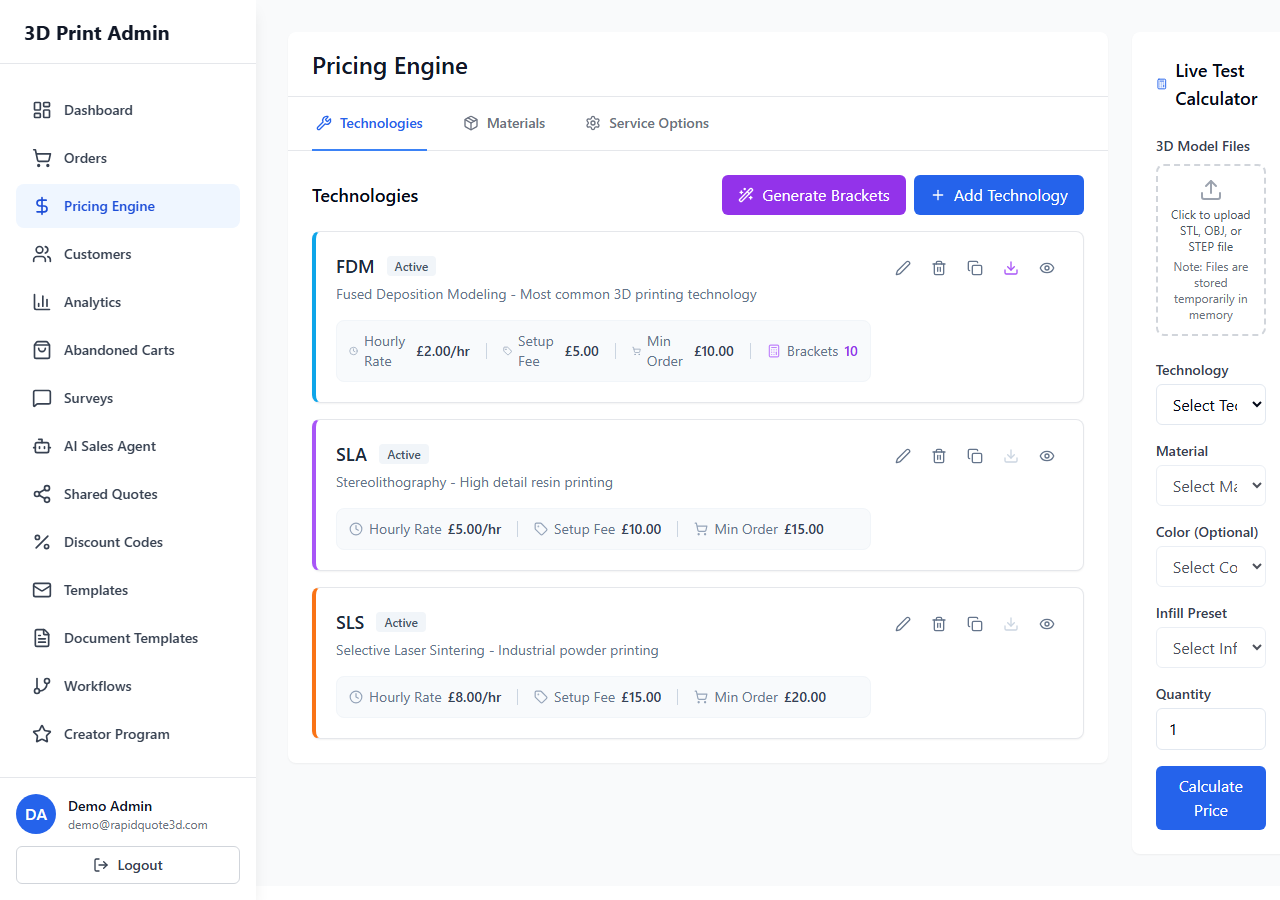
Accessing the Calculator
From the left-hand sidebar, click Pricing Engine. The calculator is available within the Technologies tab — upload a file using the file upload area to activate it. Previously uploaded files are remembered between sessions, so you can return to the calculator without re-uploading.
Uploading a Model
- Click the upload area or drag and drop a 3D model file. Supported formats include STL, OBJ, 3MF, and STEP.
- A progress bar shows the upload status. Once the file is uploaded, the platform analyses the model to extract volume, dimensions, surface area, and other geometric properties.
- An analysis progress indicator shows the processing stage. This typically takes a few seconds.
Managing Uploaded Files
You can upload multiple files. Each uploaded file appears in a list showing the filename, file size, and upload date. Click on any file to select it for quoting. Files persist across browser sessions via local storage, so your test models remain available.
Configuring the Quote
Once a file is selected and analysed, configure the quote using the dropdown fields:
- Technology — Select the printing technology (e.g. FDM, SLA, SLS).
- Material — Choose from the materials available for the selected technology.
- Colour — Pick a colour from those assigned to the chosen material.
- Infill — Select an infill option if applicable to the technology.
- Quantity — Enter the number of copies.
The price quote calculates automatically as you make selections.
Understanding the Results
The calculator displays a detailed price breakdown showing:
- The unit price and total price based on your quantity.
- A breakdown of how the price was calculated (material cost, markup, margins, support modifiers, bracket matching).
Model Validation
The calculator automatically runs two validation checks:
- Wall Thickness Validation — Compares the model's thinnest features against the minimum wall thickness configured for the selected technology. If any areas are too thin, a warning is displayed.
- Build Volume Validation — Checks whether the model's dimensions fit within the build volume (X, Y, Z) of the selected technology. An error is shown if the model is too large.
A support structure analysis also runs, estimating whether the model requires support material and how this affects the price.
3D Model Viewer
The calculator includes an interactive 3D viewer that renders the uploaded model. You can rotate, zoom, and pan to inspect the model from all angles. This is the same viewer your customers see when reviewing their uploads.
Tips
- Upload a range of model sizes (small, medium, large) to test how your pricing brackets behave across different volumes.
- Check that minimum part values are working by testing very small models.
- Use the calculator after any pricing changes to verify the impact before customers see updated quotes.
Need help with this topic? Contact our support team