Setting Up Printing Technologies
How to create and configure printing technologies such as FDM, SLA, and SLS in the Pricing Engine, including build volumes and machine rates.
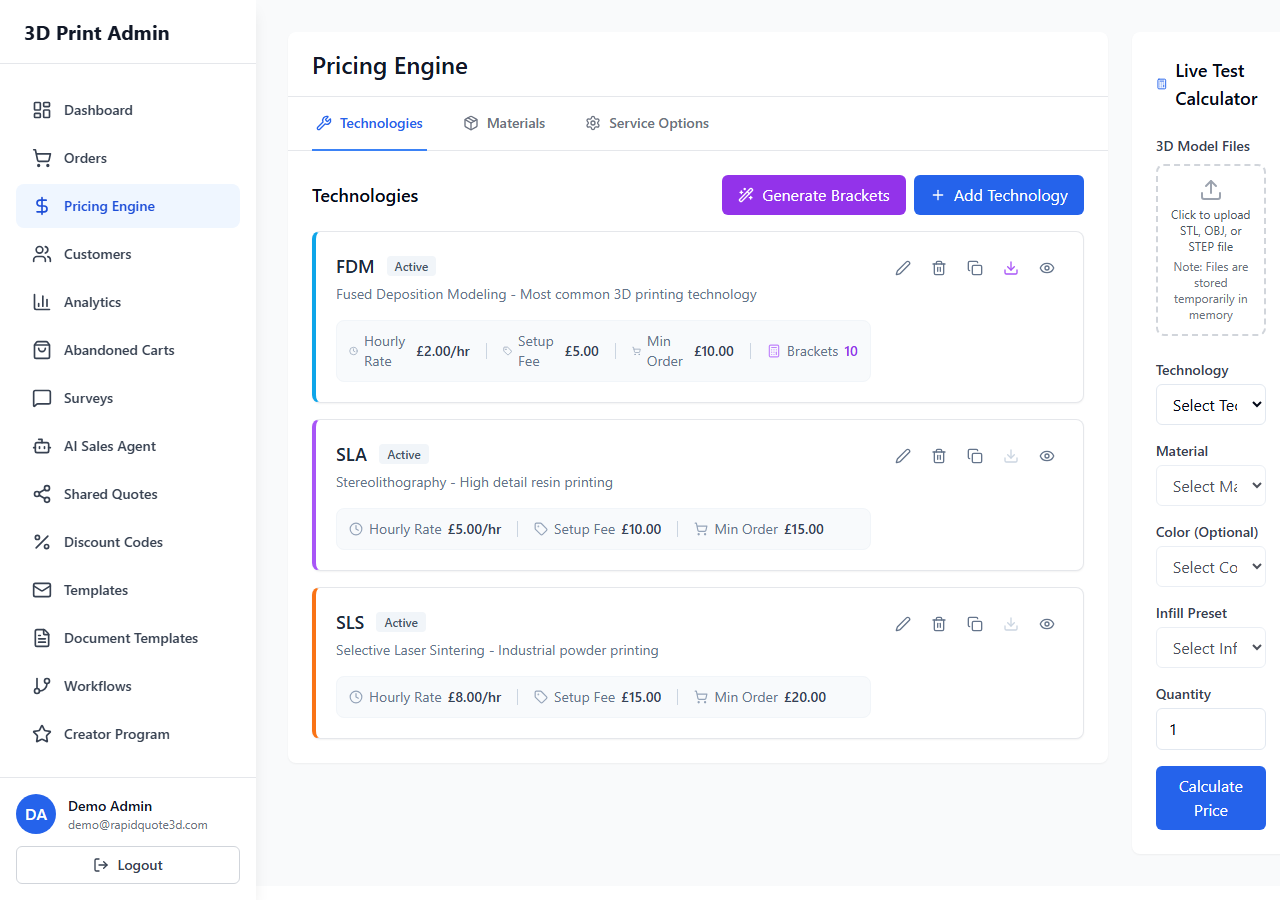
Navigating to Technologies
From the left-hand sidebar, click Pricing Engine. The page opens on the Technologies tab by default. This is where you define each printing technology your business offers.
Creating a New Technology
- Click the Add Technology button (blue, top-right of the Technologies section).
- A modal window will open with fields for configuring the technology.
Basic Fields
- Name — The display name customers will see (e.g. "FDM", "SLA Resin", "SLS Nylon").
- Description — A brief description of the technology for your reference.
- Display Order — A number controlling the sort order in the customer-facing widget. Lower numbers appear first.
- Active — Toggle to show or hide this technology from customers.
Pricing Fields
- Machine Hourly Rate — The cost per hour of running the printer, used in price calculations.
- Setup Fee — A flat fee added to each order for this technology.
- Minimum Order Value — The lowest total an order can have for this technology.
- Minimum Part Value — The lowest price a single part can be quoted at.
- Labour Time (minutes) — Estimated post-processing time per part.
- Labour Hourly Rate — The hourly cost of manual labour for post-processing.
Build Volume & Quality
- Build Volume X, Y, Z — The maximum dimensions (in millimetres) your printer can produce. Models exceeding these dimensions will show a warning to customers.
- Minimum Wall Thickness — The thinnest wall your printer can reliably produce (in millimetres). The calculator validates uploaded models against this value.
- Layer Height — The default layer height for this technology.
MES (Model Estimation System) Settings
Advanced users can fine-tune how print time and complexity are estimated. The MES section includes weight sliders for convex hull, bounding box, complexity, and surface-to-volume ratio. A support multiplier adjusts pricing for models that require support structures. Leave these at their defaults unless you need to calibrate pricing accuracy.
Volume Pricing Brackets
Each technology can have volume-based pricing brackets that define the cost per cubic centimetre at different volume ranges. These can be added manually in the modal or generated automatically using the Bracket Generator (covered in a separate guide).
Quantity Discounts
You can also add quantity discount tiers at the technology level. These apply percentage discounts when customers order multiple copies of the same part.
Editing and Deleting
Each technology in the list has Edit (pencil icon) and Delete (bin icon) buttons. Clicking Edit opens the same modal pre-filled with the existing values. Deleting a technology will also remove its associated materials, so use this with care.
Technology Image
You can upload a representative image for each technology. This image can be displayed to customers to help them understand the printing method.
Need help with this topic? Contact our support team