Adding and Managing Materials
How to create materials in the Pricing Engine, configure pricing tiers, assign them to technologies, and control visibility.
Last updated: 12 October 2026
Navigating to Materials
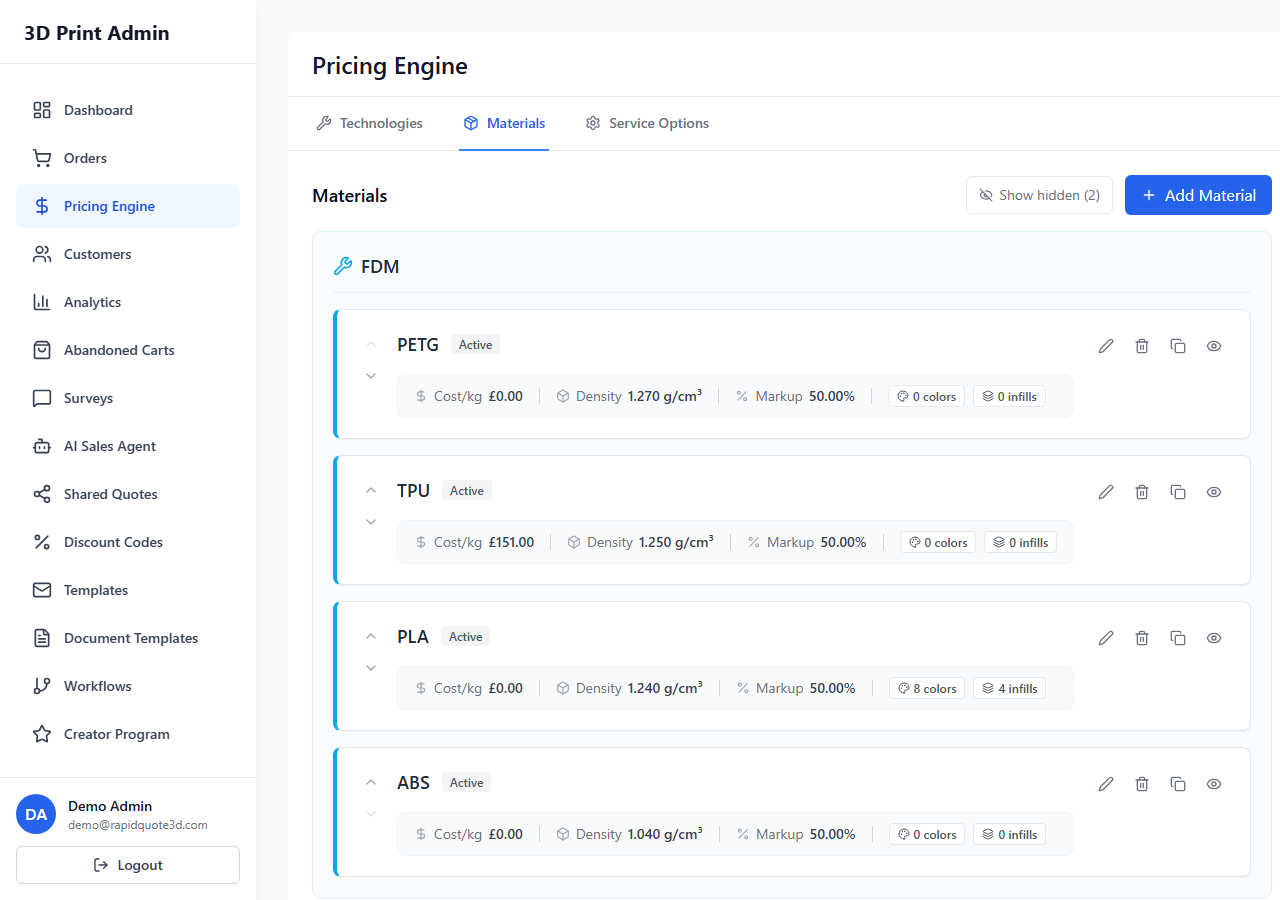
From the left-hand sidebar, click Pricing Engine, then select the Materials tab from the horizontal tab bar. This tab lists all your configured materials grouped by technology.
Creating a New Material
- Click the Add Material button at the top of the Materials section.
- A modal window opens with tabs for different configuration areas.
Basic Tab
- Name (required) — The display name customers will see (e.g. "PLA", "ABS", "Nylon PA12", "Standard Resin").
- Technology (required) — Select which printing technology this material belongs to. A material can only be assigned to one technology.
- Density (required) — The material density in g/cm³. This is essential for weight-based price calculations.
- Active — Toggle to show or hide this material from customers. Hidden materials remain in the system but do not appear in the customer widget.
Pricing Configuration
- Cost Per Kg — Your raw material cost per kilogram. Used as the base for price calculations.
- Price Per Gram — An alternative direct pricing method. If set, this can be used instead of or alongside the cost-per-kg calculation.
- Base Markup (%) — The percentage markup applied on top of the material cost. Defaults to 50%.
- Profit Margin (%) — An additional margin applied to the calculated price. Defaults to 20%.
- Support Modifier (%) — Extra cost percentage for models that require support structures. Defaults to 15%.
- Infill Modifier (%) — Additional cost adjustment based on infill density.
Large Model Discounts
- Large Model Threshold — The volume (in cm³) above which a model is considered "large".
- Large Model Discount (%) — A discount percentage applied to models that exceed the threshold, helping you stay competitive on bigger prints.
Visibility Toggle
Each material in the list shows an eye icon. Materials that are visible to customers show an open eye; hidden materials show a closed eye. You can also toggle visibility using the Active checkbox within the material modal.
To see hidden materials in the admin list, click the Show Hidden Materials toggle at the top of the Materials tab.
Editing and Duplicating Materials
Each material in the list has action buttons:
- Edit (pencil icon) — Opens the material modal with existing values pre-filled.
- Duplicate (copy icon) — Creates a copy of the material with all its settings, useful when adding a similar material with slight variations.
- Delete (bin icon) — Permanently removes the material. A confirmation prompt will appear before deletion.
Tips for Material Setup
- Always set the density accurately — this directly affects weight and price calculations.
- Start with your most popular materials and add niche options later.
- Use the Active toggle to prepare materials before making them visible to customers.
- Review your markup and margin percentages regularly to ensure competitive but profitable pricing.
Need help with this topic? Contact our support team