Creating Service Options
How to add finishing services, rush options, and delivery speed tiers in the Pricing Engine's Service Options tab.
What Are Service Options?
Service options are additional offerings that customers can select when configuring their order. These typically include delivery speed tiers (e.g. standard, express, next-day) but can also cover finishing services or rush processing. Each option can carry its own pricing and delivery time estimate.
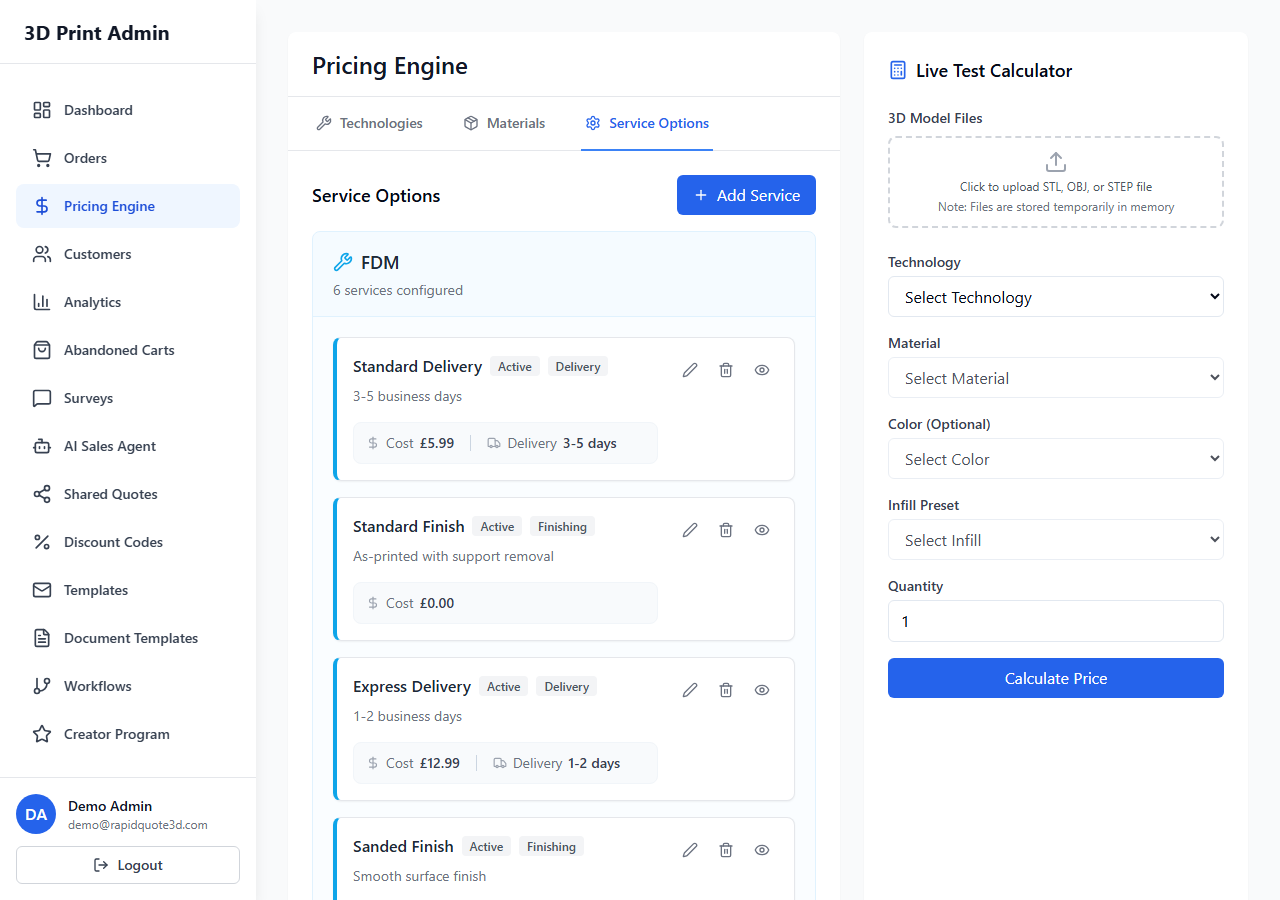
Navigating to Service Options
From the left-hand sidebar, click Pricing Engine, then select the Service Options tab from the horizontal tab bar.
Adding a New Service Option
- Click the Add Service Option button at the top of the page.
- A modal opens with the following configuration fields.
Basic Fields
- Technology — Select which printing technology this service applies to. Service options are technology-specific.
- Name — The display name shown to customers (e.g. "Standard Delivery", "Express 2-Day", "Next Day Rush").
- Service Type — Choose Delivery for shipping options. This affects how the option is presented and whether delivery zone overrides are available.
- Description — An optional short description shown alongside the option name.
- Service Code — An internal code for your reference or integration with shipping carriers.
- Display Order — Controls the sort order on the storefront. Lower numbers appear first.
- Active — Toggle to show or hide this service option.
Pricing Fields
- Cost — A flat fee in your currency added for this service (e.g. £5.00 for standard delivery).
- Price Markup Percentage — An alternative or additional pricing method that adds a percentage of the order total. For example, a 15% rush surcharge on top of the base price.
Delivery Time Fields
- Dispatch Days — The number of working days needed before the order is dispatched.
- Delivery Days Min / Max — The estimated delivery window after dispatch. These values are shown to customers as a range (e.g. "3–5 working days").
Delivery Zone Time Overrides
If you have configured delivery zones (in Settings > Delivery Zones), you can set per-zone delivery time overrides for each service option. This allows you to show longer delivery estimates for international zones while keeping domestic estimates shorter. The override section appears at the bottom of the modal when editing an existing delivery-type service option.
How Service Options Appear to Customers
On the storefront, customers see the available service options for their selected technology as selectable cards. Each card shows the option name, delivery time estimate, and the cost. Customers choose one option before proceeding to checkout.
Editing and Deleting
Each service option in the list has Edit and Delete buttons. Use Edit to adjust pricing or time estimates. Use Delete to permanently remove an option — a confirmation prompt will appear first.
Tips
- Offer at least two delivery speed options to give customers choice and to capture revenue from urgent orders.
- Keep names clear and concise — customers should instantly understand the speed and value of each option.
- If you offer finishing services like sanding or painting, create separate service options for each.
Need help with this topic? Contact our support team