Pricing Brackets and Bulk Pricing
How to use the Bracket Generator to create volume-based pricing tiers and quantity discounts for each technology.
What Are Pricing Brackets?
Pricing brackets define the cost per cubic centimetre at different model volume ranges. For example, very small models might cost £0.50/cm³ while large models might only cost £0.08/cm³. This tiered approach ensures your pricing is competitive across all model sizes and reflects the decreasing per-unit cost of larger prints.
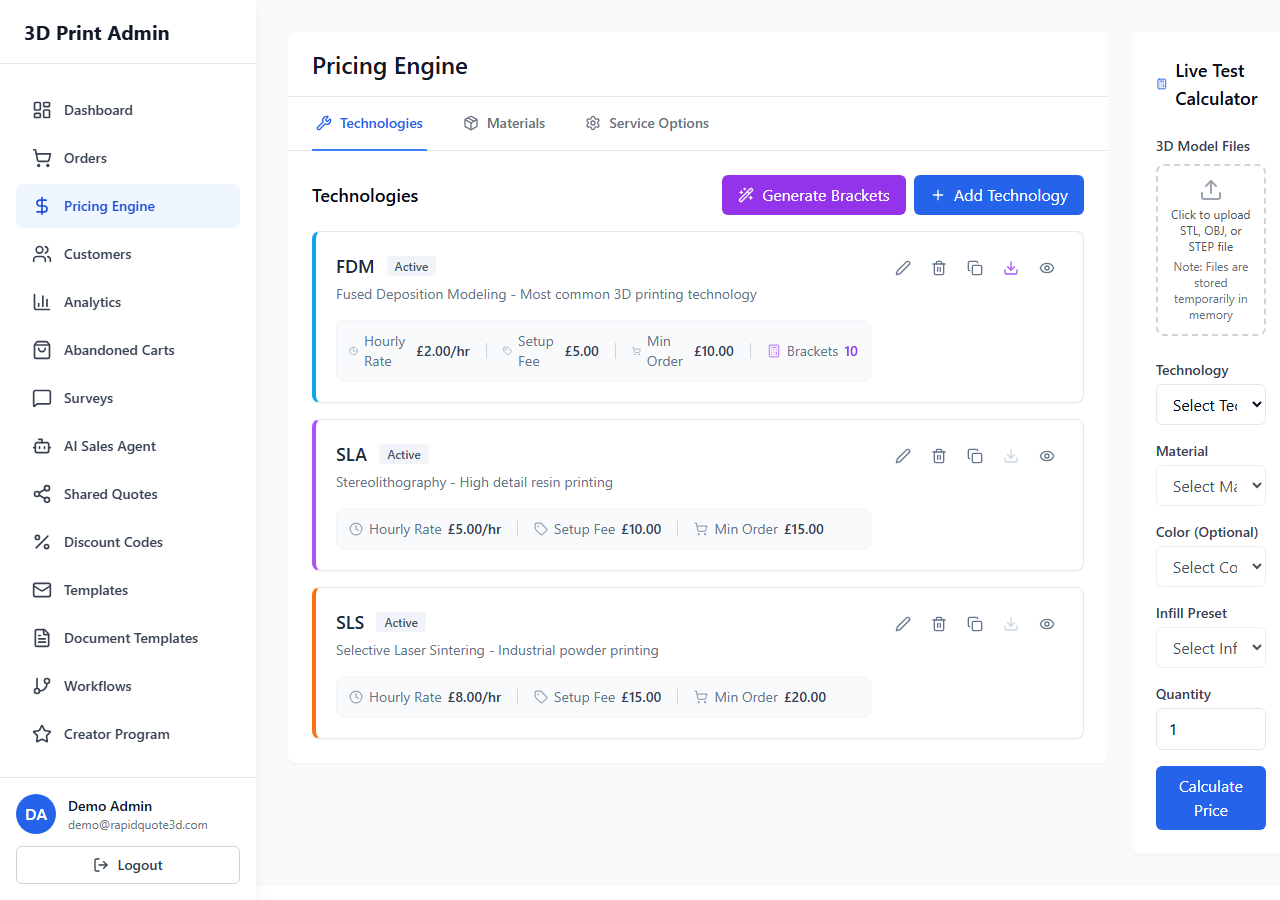
Accessing the Bracket Generator
From the Pricing Engine, go to the Technologies tab. Click the Generate Brackets button (purple, with a wand icon) in the top-right corner. This opens the Bracket Generator modal.
How the Bracket Generator Works
The Bracket Generator uses a three-step wizard to create pricing brackets based on sample data you provide:
Step 1: Configuration
- Select Technology — Choose which printing technology the brackets will apply to.
- Select Material — Choose the material to base the pricing calculations on.
Step 2: Samples
Provide sample data points that the system uses to generate a pricing curve:
- Each sample requires a Volume (cm³), optional Support Volume (cm³), and a Target Price — the price you want to charge for a model of that volume.
- You can type values manually or upload an STL file for each sample. Uploading a file automatically fills in the volume and support volume based on model analysis.
- Add at least two samples (the minimum), but more samples produce a more accurate curve. Aim for samples across a range of sizes — small, medium, and large models.
Click Add Sample to add more rows. Use the delete button to remove unwanted samples. Your samples are saved automatically so you can return and regenerate later.
Step 3: Results
After providing your samples, click Generate. The system fits a pricing curve to your data and produces a set of volume brackets. The results page shows:
- The generated brackets as a table showing volume ranges and their cost per cm³.
- A fit quality indicator showing how well the curve matches your sample data.
- A sample analysis showing the expected price for each of your samples under the generated brackets, compared to your target prices.
Bracket Step Size
The Bracket Step slider (range 10–100 cm³) controls how granular the generated brackets are. A smaller step creates more brackets with finer price gradations. A larger step creates fewer, broader brackets. The default is 50 cm³.
Applying Brackets
Once you are happy with the generated brackets, choose how to apply them:
- Replace — Removes all existing brackets for the technology and replaces them with the new ones.
- Merge — Adds the new brackets alongside existing ones, useful for filling in gaps.
Click Apply to save the brackets to the selected technology.
Quantity Discounts
Quantity discounts are configured at the technology level. When editing a technology, you can add discount tiers that reduce the price when customers order multiple copies. For example:
- 2–4 units: 5% discount
- 5–9 units: 10% discount
- 10+ units: 15% discount
These discounts are applied automatically in the customer-facing widget when the quantity exceeds the threshold.
Recalculating Brackets
When editing an existing technology, you can recalculate its brackets using a Recalculate option. This regenerates the brackets from the technology's existing sample data with a configurable step size, without needing to re-enter all your samples.
Need help with this topic? Contact our support team