Setting Up Your AI Sales Agent
Enable and configure the AI Sales Agent that answers customer questions, recommends materials, and drives sales directly from your storefront.
Setting Up Your AI Sales Agent
The AI Sales Agent is an intelligent chatbot that lives on your storefront and embedded quoting widget. It answers customer questions about materials, pricing, lead times, and your services — helping convert visitors into paying customers around the clock.
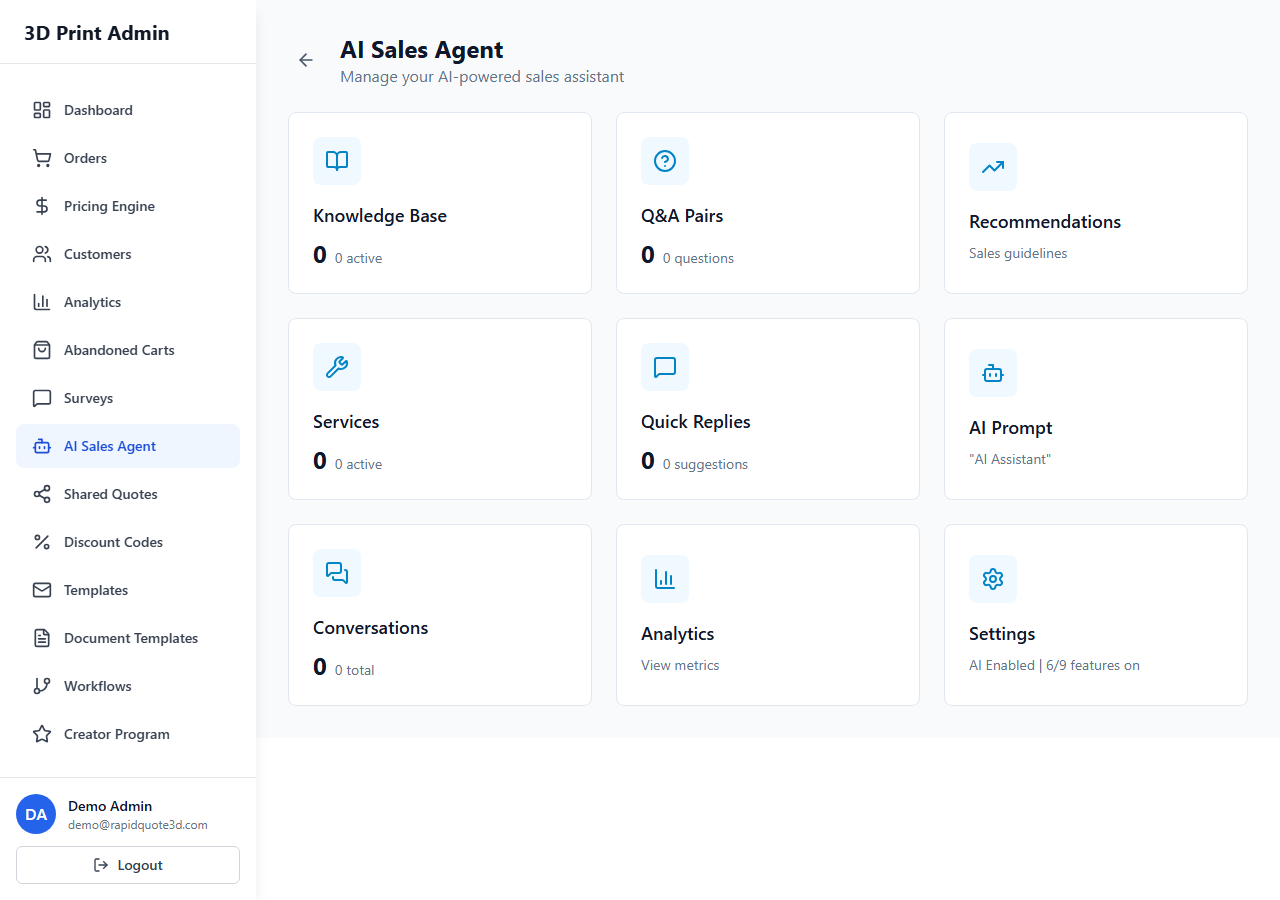
Overview of the AI Sales Agent
The agent uses artificial intelligence to:
- Answer common customer questions using your knowledge base
- Recommend materials and finishes based on customer requirements
- Suggest upsells when appropriate (e.g. premium materials, faster delivery)
- Provide quick replies for common enquiries
- Hand off to a human team member when the query is beyond its capabilities
Navigating to AI Agent Settings
- From your admin dashboard, click AI Agent in the left-hand sidebar.
- Select Settings from the submenu.
- You will see the main configuration page for your AI Sales Agent.
Enabling the Agent
- At the top of the settings page, locate the Enable AI Agent toggle.
- Switch it to On to activate the agent on your storefront.
- The agent will appear as a chat icon in the bottom-right corner of your embedded widget and any public-facing pages.
- You can disable the agent at any time by toggling it back to Off.
Basic Configuration
Agent Name
Set a name for your AI agent that will appear in the chat header. Choose something that reflects your brand:
- Your business name + "Assistant" (e.g. "Acme 3D Assistant")
- A friendly first name (e.g. "Alex")
- A role-based name (e.g. "3D Printing Advisor")
Welcome Message
The welcome message is the first thing customers see when the chat window opens. Write a friendly greeting that sets expectations:
- Introduce who the agent is
- Explain what it can help with
- Keep it concise — two to three sentences
Example: "Hi! I'm your 3D printing assistant. I can help you choose the right material, get a quote, or answer questions about our services. How can I help you today?"
Personality and Tone Settings
Adjust the agent's communication style to match your brand:
- Professional — Formal language, suitable for B2B or engineering-focused businesses
- Friendly — Warm and approachable, ideal for consumer-facing stores
- Technical — Detailed, specification-focused responses for expert audiences
You can also provide custom tone instructions in a free-text field. For example: "Be enthusiastic but not pushy. Use simple language. Avoid jargon unless the customer uses it first."
How the Agent Appears on the Storefront
Once enabled, the AI agent is presented as:
- A chat bubble icon in the bottom-right corner of the embedded widget
- Clicking the icon opens a chat window with the welcome message
- The chat window shows the agent name, any quick reply buttons, and a text input field
- On mobile devices, the chat opens as a full-screen overlay for easier typing
Agent Availability Settings
Control when the AI agent is available to customers:
- Always on — The agent is available 24/7 (recommended for most businesses).
- Business hours only — Set specific hours when the agent is active. Outside these hours, the chat icon is hidden or displays an offline message.
- Custom schedule — Configure different availability for each day of the week.
Even when set to "Always on", customers can still request human assistance. Human takeover requests are queued and handled when a team member is available.
Need help with this topic? Contact our support team