Configuring Upsell Rules
Set up keyword-triggered upsell rules so your AI Sales Agent can intelligently recommend premium materials, finishes, and services during customer conversations.
Configuring Upsell Rules
Upsell rules allow your AI Sales Agent to intelligently suggest premium options, upgrades, and add-on services when specific keywords or topics come up in conversation. This drives higher average order values while genuinely helping customers discover options they may not have known about.
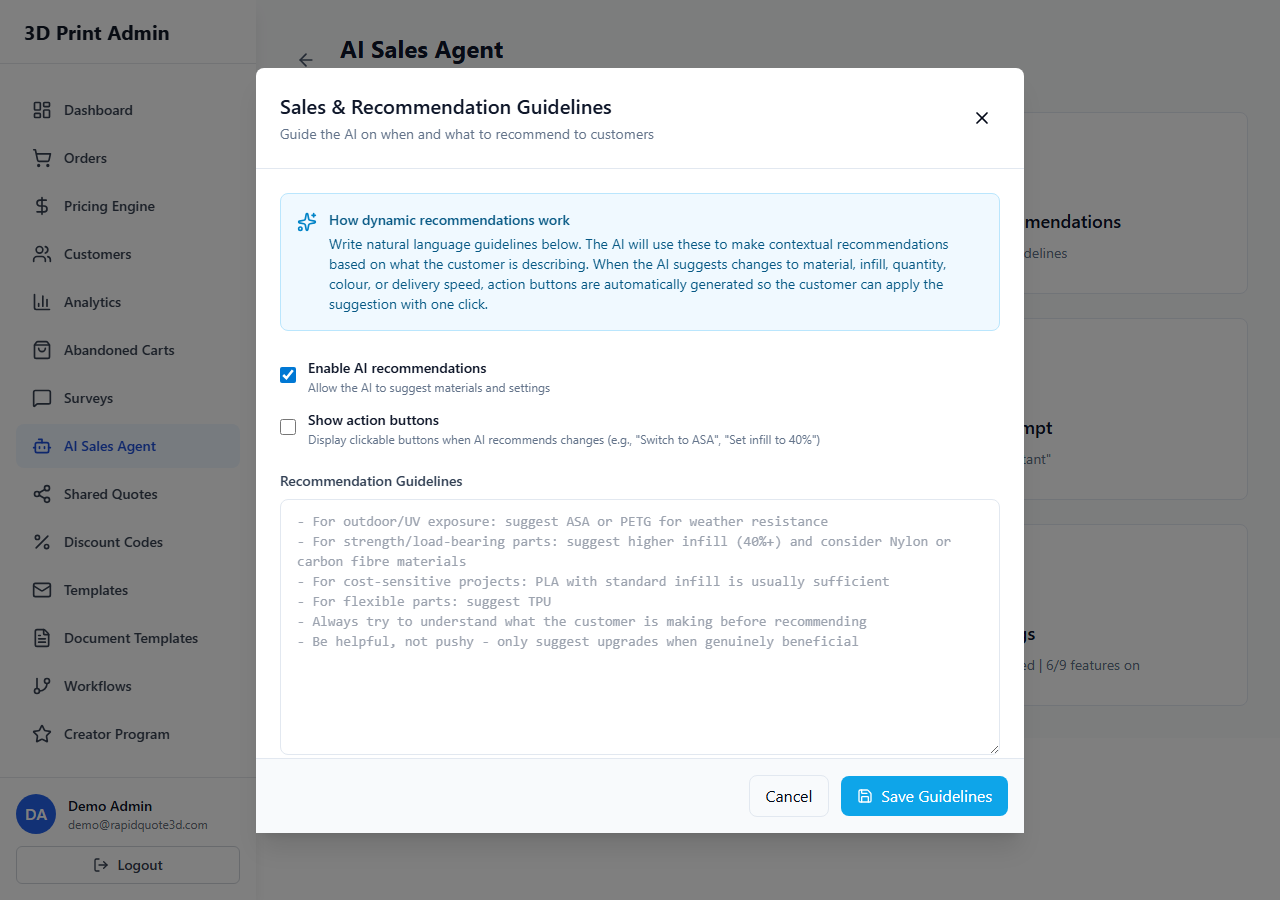
Accessing Upsell Rules
- From your admin dashboard, click AI Agent in the sidebar.
- Select Upsell Rules from the submenu.
- You will see a list of all configured upsell rules with their trigger keywords, status, and priority.
Creating a New Upsell Rule
- Click Create Rule in the top-right corner.
- Enter a Rule Name for internal reference (e.g. "Suggest premium material when price-focused").
- Configure the Trigger Keywords — the words or phrases that activate the upsell.
- Write the Upsell Message — the text the AI will incorporate into its response.
- Set the Priority level.
- Toggle the rule to Active and click Save.
Creating Keyword Triggers
Keyword triggers determine when the upsell is activated. You can add multiple keywords to a single rule:
- Single words — e.g. "cheap", "budget", "affordable"
- Phrases — e.g. "lowest price", "don't want to spend much"
- Material names — e.g. "PLA" could trigger a suggestion for PETG or ABS
- Use cases — e.g. "outdoor", "waterproof" could trigger a material recommendation
The AI checks for keyword matches in the customer's messages. Matching is case-insensitive and checks for partial matches within words.
Example Trigger Configurations
| Keywords | Upsell Suggestion |
|---|---|
| cheap, budget, affordable, low cost | Recommend the value of premium materials for durability and finish quality |
| PLA, basic material | Suggest PETG for improved strength and heat resistance |
| outdoor, garden, weather | Recommend ASA or PETG for UV and weather resistance |
| smooth, finish, surface | Suggest vapour smoothing or painting post-processing services |
| urgent, rush, fast, quickly | Offer express production and priority shipping |
| prototype, testing | Suggest ordering multiple iterations with a bulk discount |
Writing Upsell Message Templates
The upsell message is what the AI will weave into its response. Write it as a natural suggestion, not a hard sell:
- Do: "You might also want to consider PETG — it offers much better heat resistance and is only slightly more expensive than PLA."
- Don't: "BUY PETG NOW! UPGRADE TODAY!"
Tips for effective upsell messages:
- Focus on the benefit to the customer, not just the product feature.
- Acknowledge the customer's original requirement before suggesting the upgrade.
- Include a brief comparison where helpful (e.g. cost difference, performance difference).
- Keep the tone consistent with your agent's personality settings.
Setting Priority Order
When multiple upsell rules match a single message, priority determines which one is presented:
- Rules are evaluated from highest priority (1) to lowest.
- Only the highest-priority matching rule is applied per message to avoid overwhelming the customer.
- Set priority using the number field in the rule editor, or drag rules up and down in the list to reorder them.
Testing Upsell Triggers
Before activating a rule, test it to ensure it fires correctly:
- Open your storefront or embedded widget in a new browser tab.
- Start a conversation with the AI agent.
- Type a message containing one of the trigger keywords.
- Verify that the AI includes the upsell suggestion naturally in its response.
- Test edge cases — messages that are close to the keywords but should not trigger the rule.
Enabling and Disabling Individual Rules
Each rule has an Active toggle. Disable rules for seasonal promotions that have ended, or while you refine the upsell message. Disabled rules are saved but ignored by the AI.
Need help with this topic? Contact our support team