Setting Up Quick Replies & Services
Configure quick reply buttons and service listings for your AI Sales Agent chat, making it easy for customers to explore your offerings with a single tap.
Setting Up Quick Replies & Services
Quick replies and service listings make your AI Sales Agent more interactive and user-friendly. Quick replies give customers pre-configured buttons to tap instead of typing, while service listings showcase your offerings directly within the chat interface.
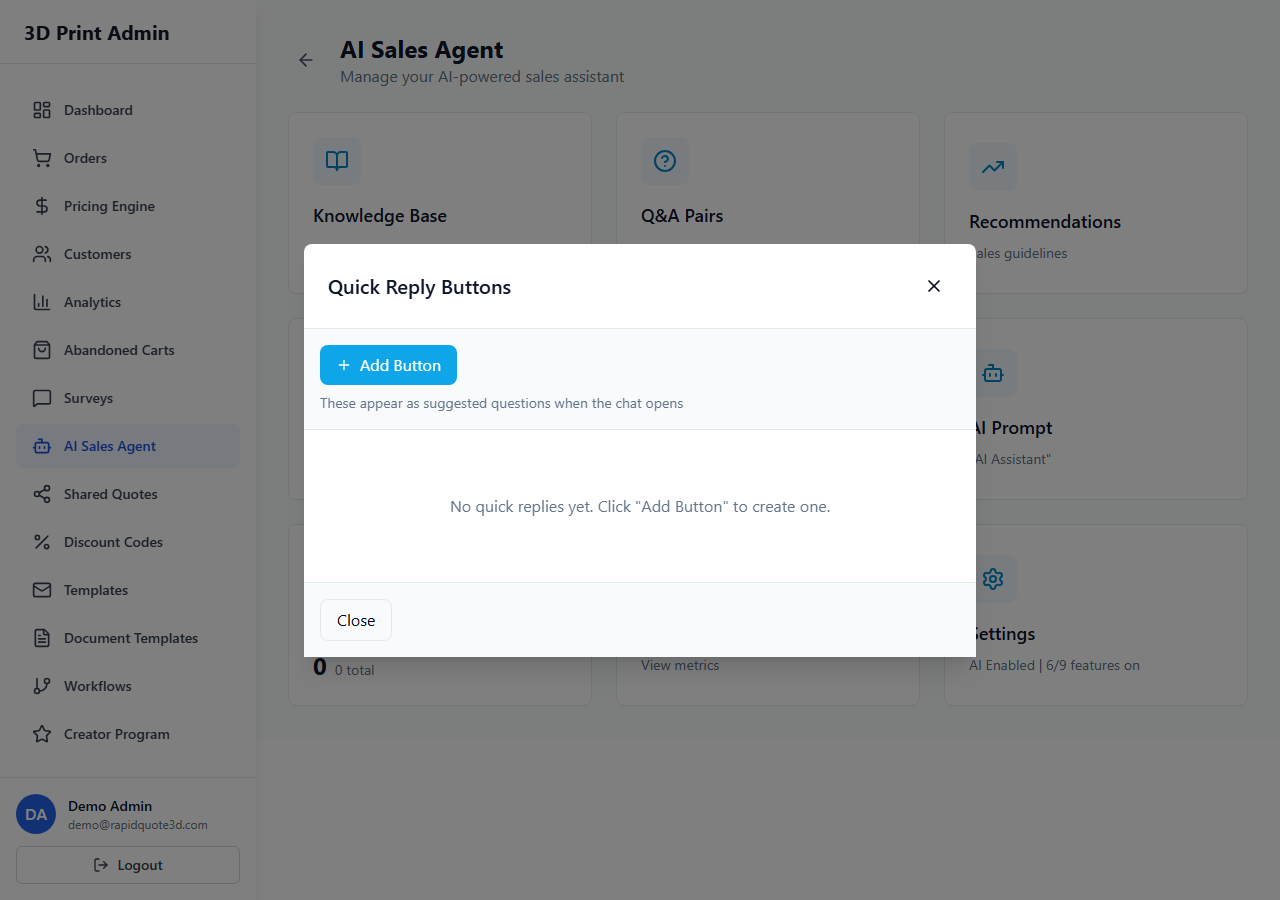
Accessing Quick Replies
- From your admin dashboard, click AI Agent in the sidebar.
- Select Quick Replies from the submenu.
- You will see a list of all configured quick reply buttons.
Creating Quick Reply Buttons
Quick reply buttons appear below the AI agent's welcome message and at key points in the conversation:
- Click Add Quick Reply.
- Enter the Button Label — the text displayed on the button (e.g. "Get a Quote", "View Materials", "Shipping Info").
- Enter the Response Text — the message that is sent to the AI when the customer clicks the button. This acts as if the customer typed it themselves.
- Optionally set a Link URL — if provided, clicking the button navigates the customer to that URL instead of sending a chat message.
- Click Save.
Quick Reply Examples
| Button Label | Response Text / Action |
|---|---|
| Get a Quote | "I'd like to get a quote for a 3D print" |
| Our Materials | "What materials do you offer?" |
| Shipping & Delivery | "How long does delivery take?" |
| Track My Order | Link to order tracking page |
| Design Guidelines | "What are your design requirements for 3D printing files?" |
| Talk to a Human | "I'd like to speak to a real person" |
Ordering Quick Replies
The order in which quick replies appear matters — the most common enquiries should be first:
- Drag and drop quick replies in the list to reorder them.
- The first three to four buttons are the most visible on desktop. On mobile, customers may need to scroll horizontally to see additional buttons.
- Aim for four to six quick replies maximum to avoid overwhelming the customer.
Setting Up Service Listings
Service listings appear as structured cards within the chat, giving customers a clear overview of what you offer:
- From the AI Agent menu, select Services.
- Click Add Service.
- Fill in the service details:
- Service Name — e.g. "FDM 3D Printing", "SLA Resin Printing", "Post-Processing"
- Description — A brief summary of the service (two to three sentences)
- Link URL — A link to more information or the quoting widget for that service
- Click Save.
How Services Appear to Customers
When a customer asks about your services or clicks a "View Services" quick reply, the AI agent presents the service listings as styled cards within the chat:
- Each card shows the service name and description.
- A "Learn More" or "Get Started" link takes the customer to the URL you configured.
- The AI can also reference service listings in its responses — for example, when a customer asks "What do you offer?", the agent may list your services with brief descriptions.
Configuring Service Descriptions
Write service descriptions that are:
- Benefit-focused — Highlight what the customer gets, not just the technical details.
- Concise — Two to three sentences maximum. The chat window has limited space.
- Action-oriented — Include a call to action like "Upload your file to get an instant quote".
How Quick Replies Appear to Customers
Quick reply buttons are displayed in the chat interface at two key moments:
- After the welcome message — All active quick replies are shown as tappable buttons below the agent's greeting.
- Contextually during conversation — The AI may suggest relevant quick replies based on the conversation flow.
On desktop, buttons appear as rounded pill shapes in a horizontal row. On mobile, they appear as scrollable buttons that the customer can swipe through. Buttons use your brand's accent colour for visual consistency.
Best Practices
- Keep labels short — Button text should be two to four words maximum.
- Cover top enquiries — Review your AI conversation logs to identify the most common questions and create quick replies for them.
- Always include a human handoff option — A "Talk to a Human" quick reply builds trust and provides an escape route for complex queries.
- Update seasonally — If you run promotions or introduce new services, update your quick replies and service listings to reflect current offerings.
Need help with this topic? Contact our support team