Setting Up Material Guidance
How to configure per-material guidance content that helps customers choose the right material on your storefront.
What Is Material Guidance?
Material Guidance is supplementary information displayed to customers on the storefront when they select a material. It helps them understand when to choose a particular material and when it might not be the best fit. This reduces support queries and helps customers make confident decisions.
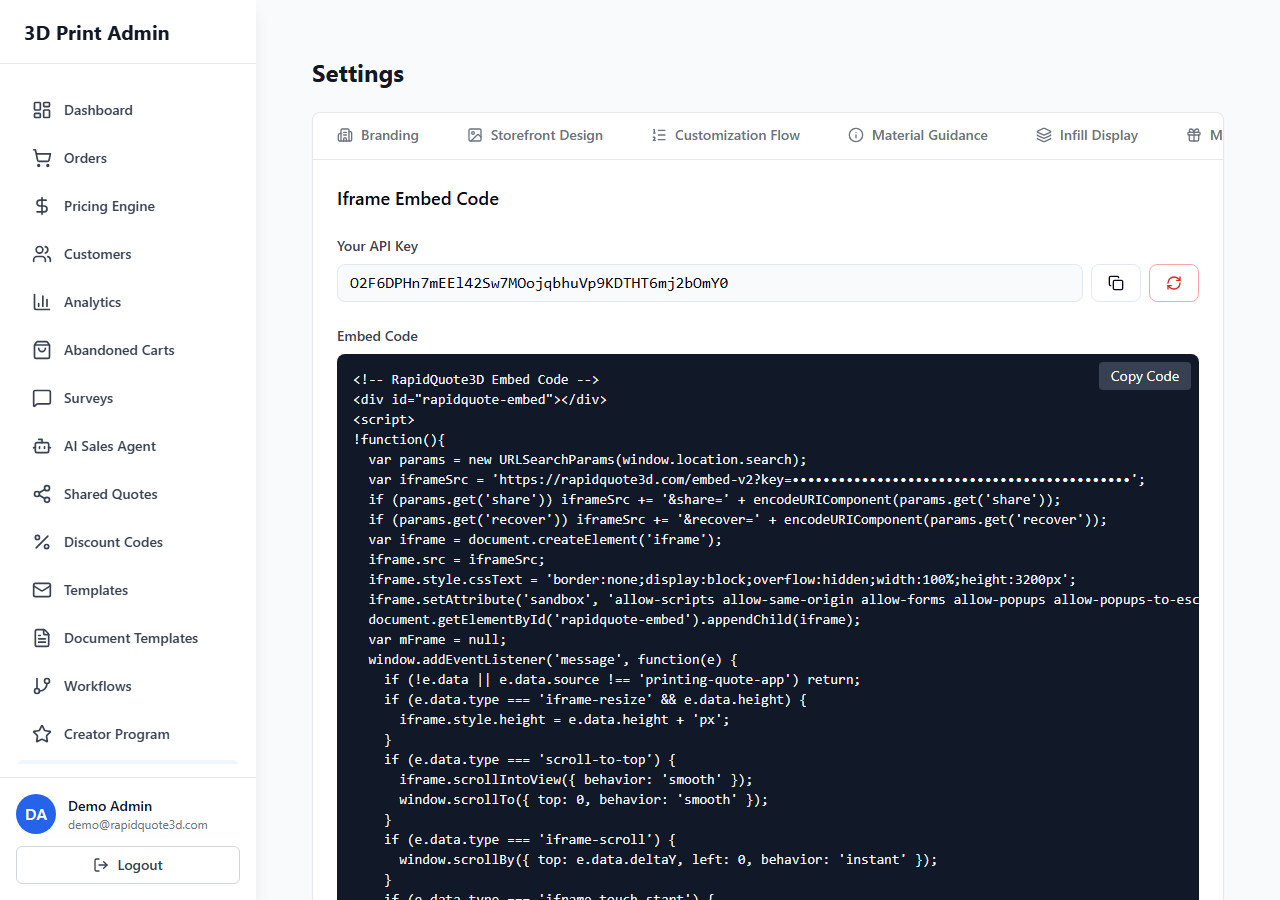
Navigating to Material Guidance
From the left-hand sidebar, click Settings. Select the Material Guidance tab from the horizontal tab bar. You will see a list of all your configured materials.
Enabling Guidance for a Material
Each material in the list has an Enabled toggle. Toggle it on for any material you want to display guidance information for. Disabled materials will not show any guidance content on the storefront, even if content has been configured.
Editing Material Guidance
Click the Edit button (pencil icon) on any material to open the Material Guidance Editor. This is a full-screen modal with the following sections:
"Choose When" Section
- Intro Text — A short introductory sentence explaining when this material is a good choice (e.g. "PLA is ideal for prototyping and display models").
- Reasons — A list of bullet-point reasons to choose this material. Click Add Reason to add more entries. Each reason should be a short, clear statement (e.g. "Easy to print with consistent results", "Wide colour selection available", "Biodegradable and eco-friendly").
"Not Ideal For" Section
- Not Ideal For — A text field describing situations where this material is not the best choice (e.g. "Not suitable for high-temperature applications or outdoor use where UV exposure is expected").
AI Assistant CTA
- AI CTA Enabled — Toggle whether to show a call-to-action linking to the AI Sales Agent for this material.
- AI CTA Text — Custom text for the CTA button (e.g. "Not sure if this material is right? Ask our AI assistant").
Sample Images
You can upload sample images to show customers what prints look like in this material. Images are associated with specific colours of the material:
- Select a colour from the dropdown (colours are loaded from the material's configured colours).
- Click the upload button to add an image.
- You can upload multiple images across different colours.
- Use the delete button to remove unwanted images.
These images appear in a gallery format within the guidance panel on the storefront.
Saving Your Changes
Click the Save button at the bottom of the editor modal. A success notification confirms the guidance has been saved.
How It Appears to Customers
On the storefront, when a customer selects a material with guidance enabled, an expandable panel appears showing the "Choose When" reasons, the "Not Ideal For" warning, sample images, and optionally the AI assistant CTA. This information helps customers self-serve without needing to contact you for material advice.
Tips
- Write guidance content in plain, non-technical language that anyone can understand.
- Focus on real-world use cases rather than technical specifications.
- Upload high-quality sample images that showcase the material's finish and colour accuracy.
- Keep the "Not Ideal For" section honest — customers appreciate transparency and it builds trust.
Need help with this topic? Contact our support team