Adding Custom Tracking Scripts
How to add Google Tag Manager, Google Analytics, Facebook Pixel, and other tracking scripts to your customer-facing storefront pages.
What Are Custom Scripts?
Custom scripts allow you to inject tracking and analytics code (such as Google Tag Manager, Google Analytics 4, or Facebook Pixel) into your customer-facing storefront pages. These scripts load when customers visit your embedded quoting widget, enabling you to track conversions, page views, and user behaviour.
Navigating to Custom Scripts
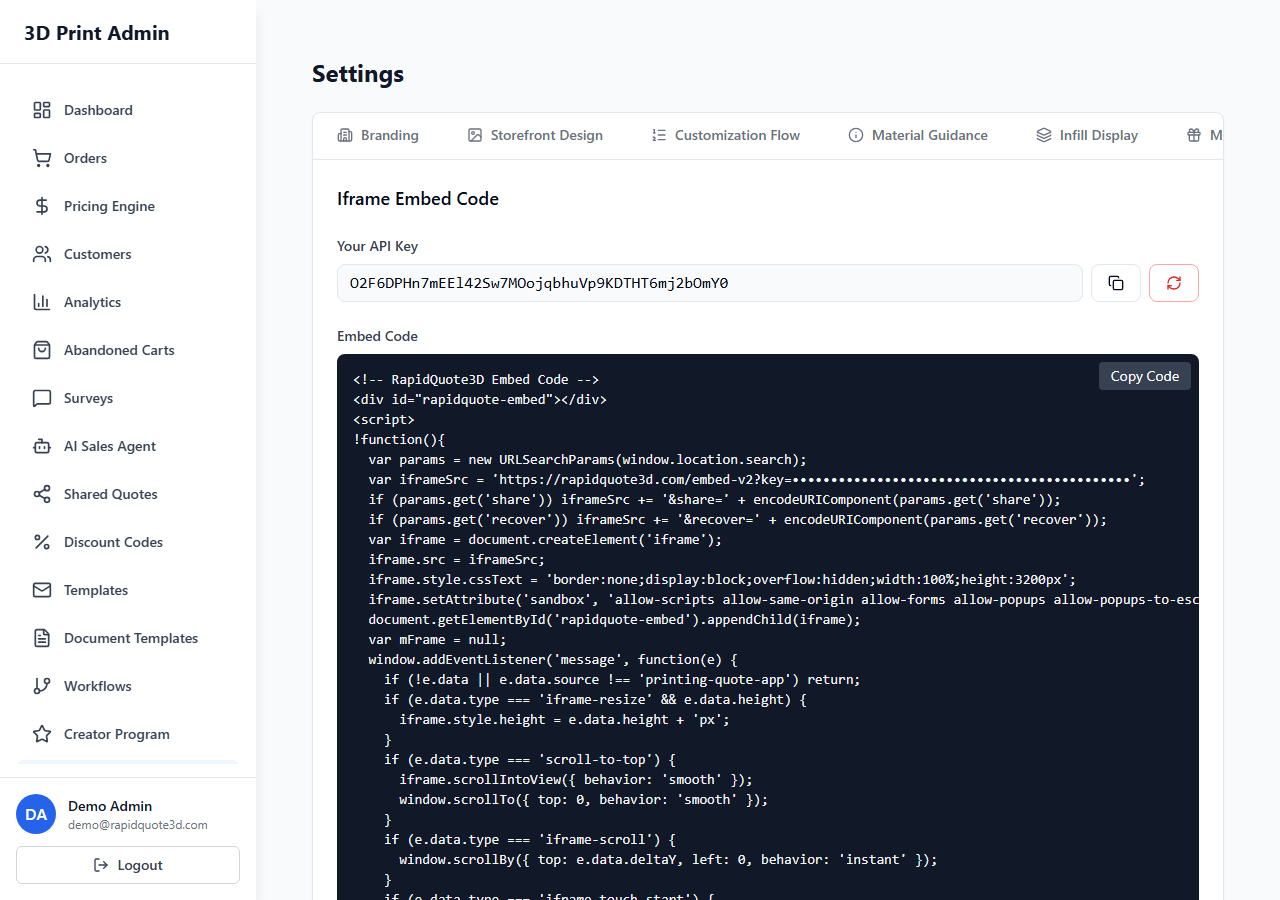
From the left-hand sidebar, click Settings. Select the Integration Keys tab from the horizontal tab bar. Scroll down past the API key fields to find the Custom Embed Scripts section.
Understanding the Two Code Areas
There are two text areas for adding scripts, corresponding to where the code is injected on the page:
Head Scripts
Code entered here is injected into the <head> section of your customer-facing pages. This is the correct location for most tracking scripts. Common uses include:
- Google Tag Manager — The main GTM container script.
- Google Analytics 4 (GA4) — The gtag.js tracking snippet.
- Facebook Pixel — The Meta Pixel base code.
- Other analytics tools — Hotjar, Microsoft Clarity, LinkedIn Insight Tag, etc.
A placeholder example for Google Tag Manager is shown in the field to guide you.
Body Scripts
Code entered here is injected immediately after the opening <body> tag. This is typically used for:
- Google Tag Manager (noscript fallback) — The noscript iframe that GTM requires for users with JavaScript disabled.
- Other body-level tracking pixels that need to load early in the page.
Adding a Script
- Copy the tracking code from your analytics provider (e.g. Google Tag Manager, GA4, or Facebook Business Manager).
- Paste the
<script>portion into the Head Scripts text area. - If the tracking tool also requires a
<noscript>tag, paste that into the Body Scripts text area. - Click the Save Custom Scripts button.
- A success notification confirms the scripts have been saved.
Example: Google Tag Manager
To install GTM, you would typically add two pieces of code:
- Head Scripts — The main GTM JavaScript snippet (the part that goes in
<head>). ReplaceGTM-XXXXXXwith your actual container ID. - Body Scripts — The GTM noscript fallback iframe (the part that goes after
<body>). Again, replaceGTM-XXXXXXwith your container ID.
Important Notes
- Scripts only load on your customer-facing embed pages (the storefront, cart, and checkout), not in the admin dashboard.
- Scripts are tenant-specific — they only load for your account's pages, not for other RapidQuote3D users.
- The platform respects cookie consent preferences. If a customer declines tracking cookies, scripts may not execute, depending on your consent implementation.
- Both text areas use a monospace font code editor for easy pasting and editing.
Testing Your Scripts
After saving your scripts:
- Open your embedded storefront page in a browser.
- Open the browser's developer tools (right-click > Inspect, then go to the Network or Console tab).
- Verify that your tracking requests are firing (e.g. look for requests to
googletagmanager.comorfacebook.com). - If using GTM, check Tag Assistant or the GTM preview mode to confirm your container is loading.
Removing Scripts
To remove a tracking script, simply clear the contents of the relevant text area and click Save Custom Scripts. The scripts will no longer be injected on your storefront pages.
Need help with this topic? Contact our support team