Your Dashboard Explained
A walkthrough of your RapidQuote3D dashboard — stat cards, the onboarding checklist, recent orders, and the quick stats panel.
Overview
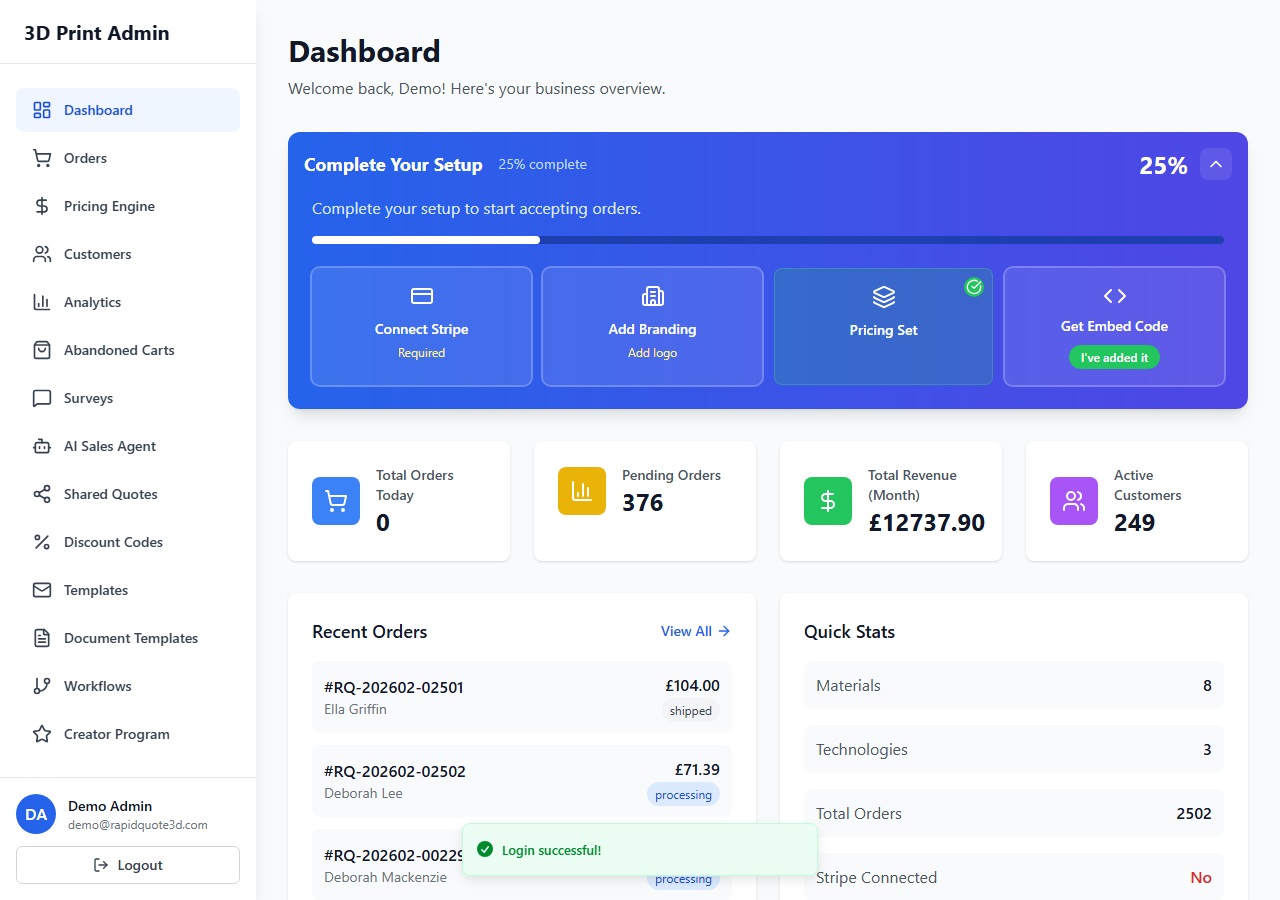
The Dashboard is the first page you see when you log in to RapidQuote3D. It provides a snapshot of your business at a glance, including live order stats, a setup progress tracker, and quick links to key areas of the platform.
The Welcome Banner
At the top of the page, you will see a personalised greeting that displays your first name and a brief description: "Here's your business overview." This confirms which account you are logged into.
The Onboarding Checklist
If you have not yet completed your initial setup, a blue gradient banner appears at the top of your dashboard titled Complete Your Setup. It shows your overall progress as a percentage along with a progress bar.
The checklist contains four steps arranged in a grid:
- Connect Stripe — Links to Settings > Payments. Marked as "Required" until completed.
- Add Branding — Links to Settings > Branding. Prompts you to add your logo.
- Setup Pricing — Links to the Pricing Engine. Prompts you to configure rates.
- Get Embed Code — Links to Settings > Iframe Embed Code. Once you have added it to your site, click the "I've added it" button to mark it as complete.
Each step shows a green tick and a green-tinted background once completed. You can collapse the banner by clicking the chevron icon in the top-right corner; this preference is remembered between sessions.
Stat Cards
Below the onboarding checklist, you will find a row of stat cards displayed in a grid. These update each time you load the dashboard:
- Total Orders Today (blue icon) — The number of orders placed so far today.
- Pending Orders (yellow icon) — Orders awaiting action or processing.
- Total Revenue (Month) (green icon) — Your total revenue for the current calendar month. This card only appears if your user role has the "Can View Revenue" permission enabled.
- Active Customers (purple icon) — The total number of customers who have placed at least one order.
Recent Orders
On the left side of the main content area, the Recent Orders panel shows up to five of your most recent orders. Each entry displays the order number, customer name, total amount, and a colour-coded status badge (green for completed, blue for processing, yellow for pending). Click any order to open its full detail page. A "View All" link in the top-right corner takes you to the full Orders page.
If you have no orders yet, a helpful message reminds you to share your embed code to start receiving orders.
Quick Stats
On the right side, the Quick Stats panel shows a summary of your platform setup:
- Materials — The number of materials you have configured.
- Technologies — The number of printing technologies you have set up.
- Total Orders — Your all-time order count.
- Stripe Connected — Shows "Yes" in green or "No" in red.
Trial Banner
If your account is on a free trial, a yellow banner appears below the stat cards showing your trial end date and a link to view subscription plans in Settings > Subscription.
Need help with this topic? Contact our support team