Understanding Order Statuses
A complete reference for every order and payment status in RapidQuote3D, including what triggers status changes and how to update them manually.
Order Fulfilment Statuses
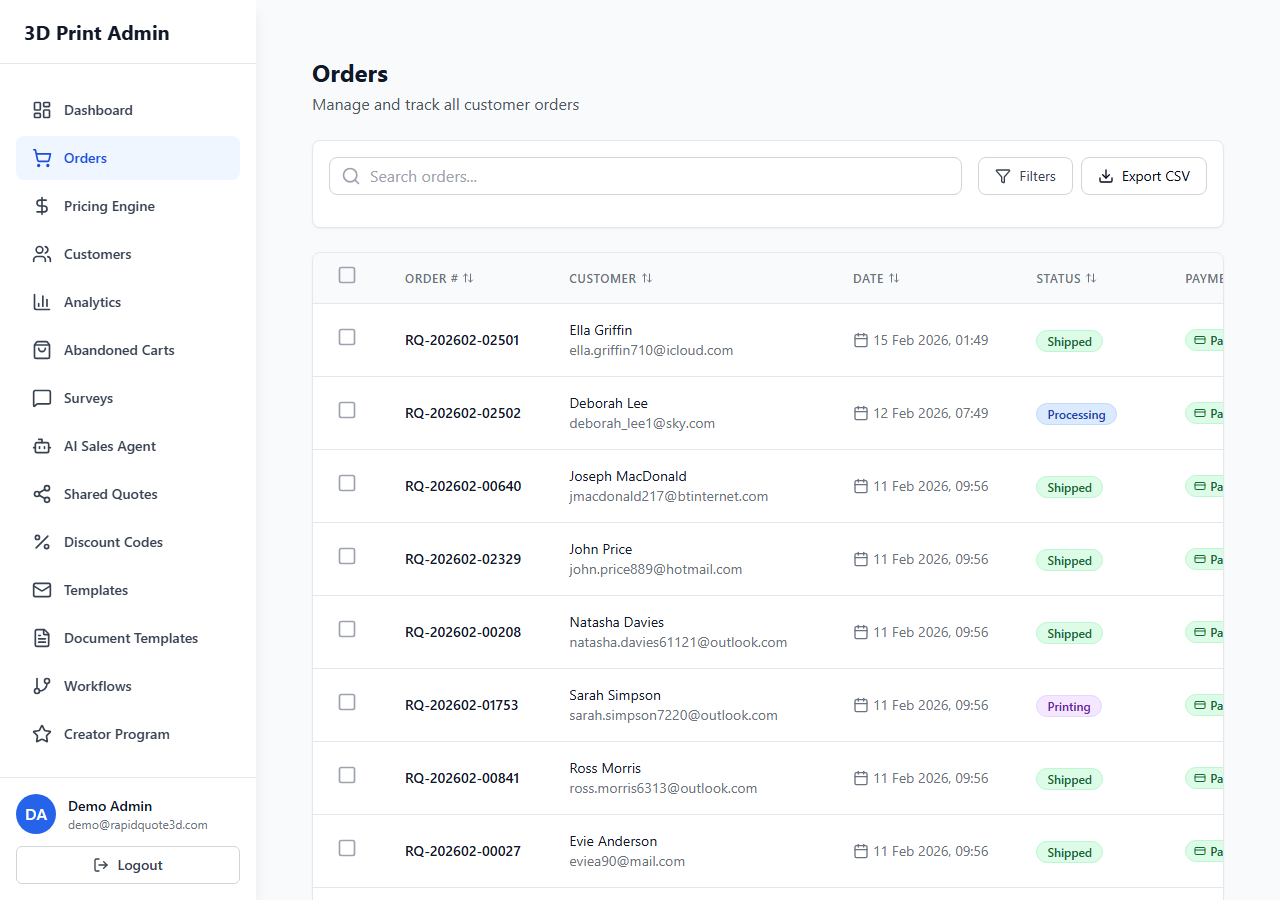
Every order in RapidQuote3D moves through a series of fulfilment statuses that represent its journey from submission to delivery. Understanding these statuses helps you manage your workflow and keep customers informed.
New
An order is marked as New the moment a customer completes checkout. This is the default starting status. It tells you the order has been received but not yet reviewed or accepted by your team. New orders appear with a blue badge and are highlighted in the dashboard’s “Requires Attention” section.
In Print Queue
Once you review and accept a new order, move it to In Print Queue. This status (indigo badge) indicates the order has been approved and is waiting for an available printer. Use this status to build a prioritised queue of jobs.
In Progress
Set an order to In Progress (yellow badge) when printing has started or post-processing is underway. This is your active-work status and signals to any team members viewing the dashboard that the job is currently being handled.
On Hold
The On Hold status (orange badge) is used when an order cannot proceed. Common reasons include waiting for the customer to clarify a design issue, a material being temporarily out of stock, or a payment query. You can add an internal note explaining the hold reason.
Shipped
Mark an order as Shipped (purple badge) once it has been dispatched. When you set this status, you will be prompted to enter a tracking number and select the courier. If notifications are enabled, the customer automatically receives a shipping confirmation email with tracking details.
Delivered
The Delivered status (green badge) confirms the customer has received their order. This can be set manually by your team or, if you have carrier tracking integration enabled, it can be updated automatically when the courier confirms delivery.
Cancelled
Use the Cancelled status (red badge) for orders that will not be fulfilled. When cancelling, you will be asked to provide a cancellation reason. If the order was already paid, you will see a prompt to initiate a refund.
Payment Statuses
Payment statuses track the financial side of each order independently from fulfilment:
- Paid (green) – Payment has been successfully captured via Stripe.
- Pending (yellow) – Payment is awaiting confirmation. This may occur with bank transfers or during 3D Secure authentication.
- Refunded (grey) – A full or partial refund has been issued through Stripe.
- Failed (red) – The payment attempt was declined or encountered an error.
How to Change a Status
- Open the order detail page by clicking the order number.
- Locate the Status section in the top-right panel.
- Click the current status badge to open the status dropdown.
- Select the new status from the list.
- If prompted, fill in any required information (e.g. tracking number for Shipped).
- Click Update to save. The change is recorded in the order’s status history timeline.
Automatic Status Triggers
Some status changes happen automatically to save you time:
- When a customer completes checkout, the order is created with a New status and a Paid or Pending payment status depending on the payment outcome.
- If a Stripe webhook confirms a previously pending payment, the payment status updates to Paid automatically.
- If a Stripe payment fails after checkout, the payment status changes to Failed.
- When you issue a refund through the order detail page, the payment status changes to Refunded.
Best Practices
- Update statuses promptly so your dashboard metrics and customer notifications stay accurate.
- Use the On Hold status with an internal note rather than leaving stale orders in “New” or “In Progress”.
- Review the status history timeline on any order to see a full audit trail of who changed what and when.
Need help with this topic? Contact our support team