Managing Orders
Learn how to navigate the Orders page, filter and sort your order list, and quickly access order details to stay on top of every job.
Navigating to the Orders Page
The Orders page is your central hub for tracking every job that comes through your 3D printing business. To access it, click Orders in the left-hand sidebar of your admin dashboard. The page loads with your most recent orders displayed first.
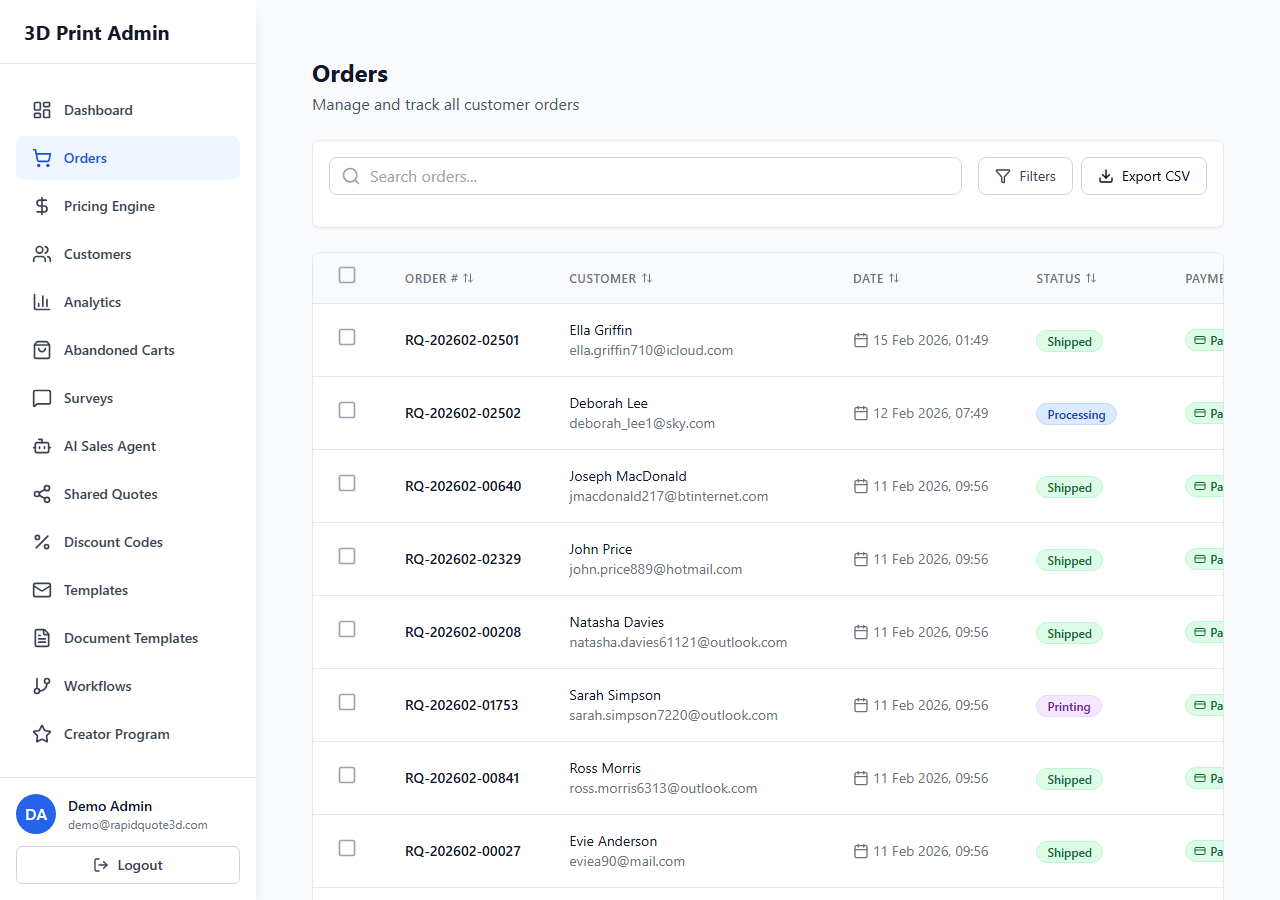
Understanding the Order List Table
The order list table gives you a high-level snapshot of every order. Each row displays the following columns:
- Order Number – A unique reference code (e.g. #ORD-001234) that you and your customer can use to identify the order.
- Customer – The name and email address of the customer who placed the order.
- Date – The date and time the order was submitted.
- Status – A colour-coded badge indicating the current fulfilment status (e.g. New, In Progress, Shipped).
- Payment – The payment status badge (Paid, Pending, Refunded, or Failed).
- Total – The final order value including VAT and delivery charges.
Filtering Orders
When your order volume grows, filters help you find exactly what you need. The filter bar sits above the order table and offers three ways to narrow results:
- Status Filter – Click the status dropdown to show only orders matching a specific fulfilment status such as “New” or “Shipped”.
- Date Range – Use the date picker to define a start and end date. Only orders placed within that window will appear.
- Search – Type into the search box to find orders by order number, customer name, or email address. Results update as you type.
You can combine all three filters simultaneously. For example, you might search for a customer name while filtering to only “In Progress” orders from the last 7 days.
Sorting Columns
Click any column header to sort the table by that field. Click once for ascending order, and click again for descending. The active sort column is indicated by a small arrow icon next to the header text. Sorting by Date descending (newest first) is the default view.
Quick-View vs Full Detail
There are two ways to inspect an order:
- Quick-View Panel – Click the eye icon on any order row to open a slide-out panel on the right side of the screen. This shows the order summary, status, and customer details without leaving the list page. It is ideal for a fast check.
- Full Detail Page – Click the order number link or the “View” button to open the complete order detail page. This gives you access to the 3D model viewer, pricing breakdown, notes, status history, and all management actions.
Understanding Order Badges
Badges use colour coding so you can scan order states at a glance:
| Badge | Colour | Meaning |
|---|---|---|
| New | Blue | Order just received, not yet reviewed |
| In Print Queue | Indigo | Accepted and queued for printing |
| In Progress | Yellow | Currently being printed or post-processed |
| On Hold | Orange | Paused, awaiting customer input or stock |
| Shipped | Purple | Dispatched to the customer |
| Delivered | Green | Confirmed delivered |
| Cancelled | Red | Order cancelled |
Payment badges follow a similar pattern: Paid is green, Pending is yellow, Refunded is grey, and Failed is red.
Need help with this topic? Contact our support team