Order Details Deep Dive
Explore every feature on the order detail page including the 3D model viewer, pricing breakdown, status timeline, internal notes, and packing slip printing.
Opening an Order
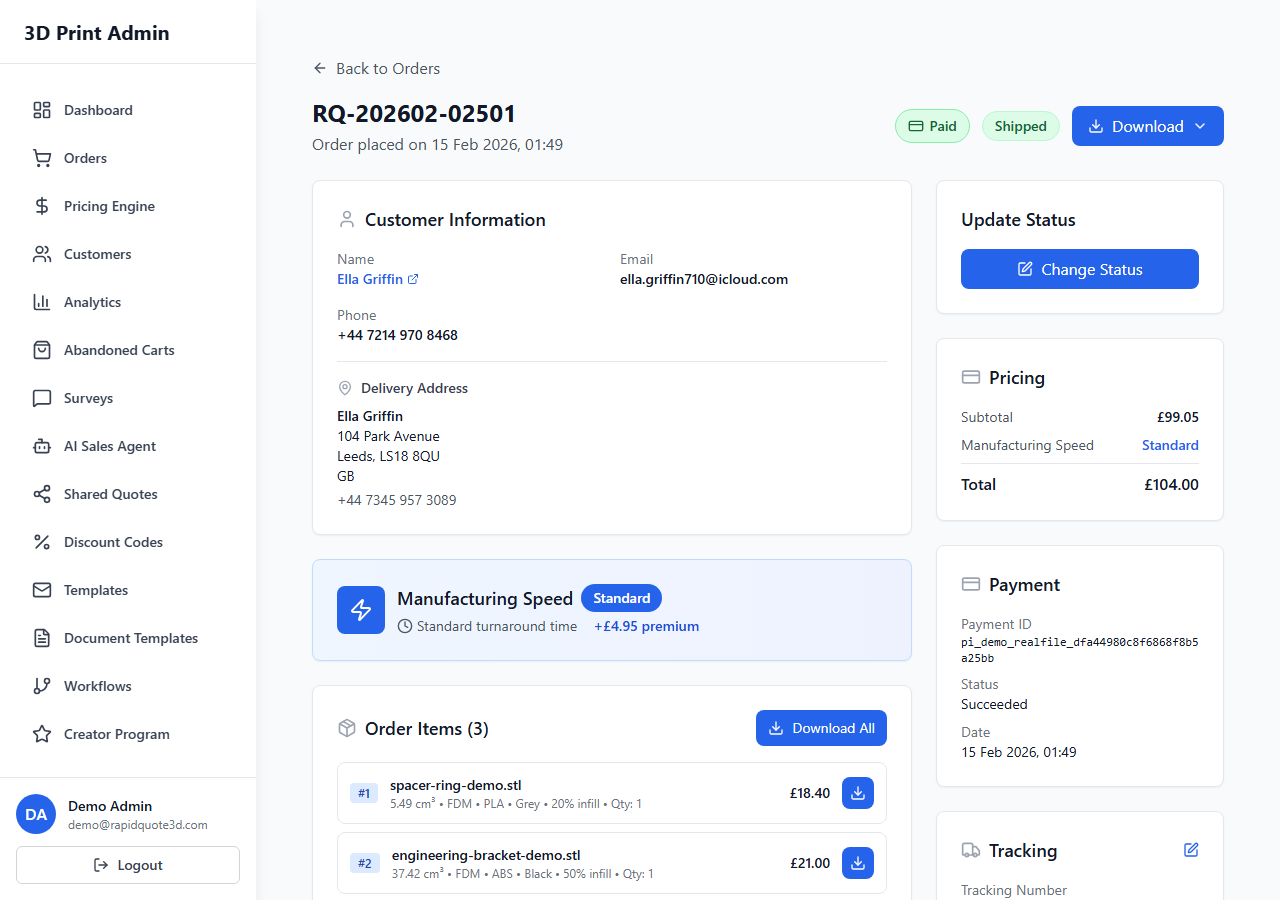
From the Orders page, click any order number to open the full order detail page. This page provides comprehensive information and tools for managing a single order from start to finish.
3D Model Viewer
The order detail page features an interactive 3D model viewer that displays the customer’s uploaded file. The viewer supports the following controls:
- Rotate – Click and drag to rotate the model in any direction. This helps you inspect all sides of the part.
- Zoom – Use your scroll wheel to zoom in and out, or pinch on touch devices.
- Pan – Right-click and drag (or two-finger drag on touch) to pan the view.
- Wireframe Toggle – Click the wireframe button to switch between solid and wireframe views. Wireframe mode is useful for checking mesh quality and geometry details.
- Reset View – Click the reset button to return the camera to its default position.
Below the viewer, you can see the file name, file size, and key dimensions (length, width, height) of the model as calculated during upload.
Pricing Breakdown Table
The pricing section shows a detailed breakdown of how the order total was calculated:
| Line | Description |
|---|---|
| Material & Technology | The selected material and printing technology with per-unit cost |
| Quantity | Number of units ordered |
| Model Volume | The calculated volume of the 3D model in cm³ |
| Base Print Cost | Cost calculated from volume, material rate, and technology |
| Colour / Finish | Any surcharges for special colours or finishes |
| Subtotal | Sum of all line items before delivery and VAT |
| Discount | Any applied discount code with the deducted amount |
| Delivery | Delivery charge based on zone and speed tier |
| VAT | VAT amount calculated from the applicable zone rate |
| Total | Final amount charged to the customer |
Customer Information Panel
The right-hand panel shows the customer’s contact and delivery details:
- Full name and email address (clickable to open their customer profile).
- Phone number, if provided.
- Billing address.
- Delivery address (highlighted if different from billing).
Status History Timeline
Below the customer panel, a vertical timeline displays every status change the order has been through. Each entry shows:
- The old status and the new status.
- The date and time of the change.
- The team member who made the change (or “System” for automatic changes).
This audit trail is invaluable for reviewing the lifecycle of an order, resolving disputes, and ensuring accountability within your team.
Internal Notes
The internal notes section lets you and your team leave private comments about the order. Notes are not visible to the customer. To add a note, type in the text area and click Add Note. Each note is timestamped with the author’s name.
Use notes to record production observations (“Print paused due to layer adhesion issue, restarted successfully”), customer communications, or any other relevant context.
Updating Status and Sending Notifications
To update the order status, click the status badge in the header area and select a new status from the dropdown. When you change the status, a toggle option appears asking whether to notify the customer. If enabled, the system sends an automated email informing the customer of the status change.
For the Shipped status specifically, you will be prompted to enter a tracking number and select the courier service. This information is included in the notification email so the customer can track their parcel.
Printing Packing Slips
To generate a packing slip for the order:
- Click the Print Packing Slip button in the actions area at the top of the page.
- A print-optimised view opens in a new browser tab showing the order number, customer delivery address, list of items with quantities, and any special instructions.
- Use your browser’s print function (Ctrl+P or Cmd+P) to print the slip or save it as a PDF.
The packing slip does not include pricing information by default, so it is safe to include inside the parcel. If you need pricing shown, you can toggle that option in Settings > Orders > Packing Slip Preferences.
Need help with this topic? Contact our support team