Sharing Quotes with Customers
Generate shareable quote links from orders or carts, track when customers view them, set expiry dates, and convert quotes into confirmed orders.
What Is a Shared Quote?
A shared quote is a read-only page that presents a pricing breakdown for one or more 3D printed parts. You can generate a shareable link and send it to a customer for review. This is particularly useful for B2B customers who need to get internal approval before placing an order, or when you want to provide a formal quotation without the customer needing to go through the full quoting widget themselves.
Creating a Shared Quote from an Order
- Open the order detail page for the relevant order.
- Click the Share as Quote button in the actions area at the top of the page.
- A dialog appears showing the quote details pre-populated from the order, including all line items, pricing, and customer information.
- Review the details. You can optionally add a personal message that will appear at the top of the quote page (e.g. “Thank you for your enquiry. Please find your quote below.”).
- Set the expiry date (see below).
- Click Generate Quote.
Creating a Shared Quote from a Cart
You can also create a quote from the Abandoned Carts section or from a customer’s active cart:
- Navigate to Marketing > Abandoned Carts and open the cart you want to quote.
- Click Create Quote.
- The quote is generated with the cart’s items and pricing. Adjust any details as needed before generating the link.
Generating the Shareable Link
After creating the quote, a unique URL is generated (e.g. yourdomain.com/quote/abc123). You can:
- Click Copy Link to copy the URL to your clipboard for pasting into an email or message.
- Click Send via Email to have the system send an email to the customer with the quote link. The email uses your configured branding and includes the personal message.
Quote Expiry Settings
Every shared quote has an expiry date. After the expiry date, the quote link shows an “Expired” message and the customer cannot convert it to an order. Set the expiry when creating the quote:
- 7 days – Standard for quick-turnaround quotes.
- 14 days – Common for small business customers.
- 30 days – Suitable for B2B customers who may need longer approval cycles.
- Custom – Enter a specific date.
You can extend the expiry date at any time from the quote management page.
Tracking When Quotes Are Viewed
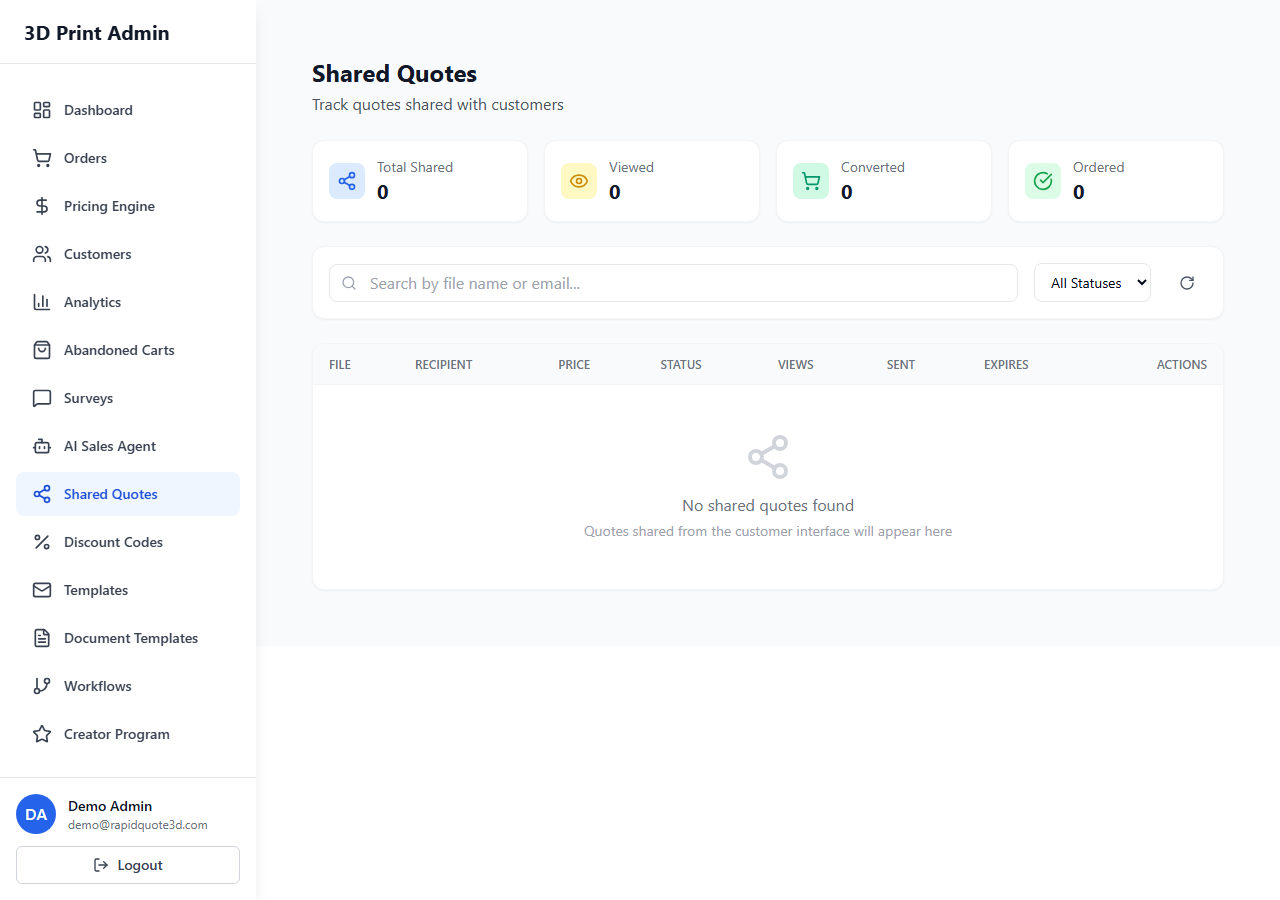
The system tracks when a customer opens the quote link. In Marketing > Shared Quotes, each quote shows:
- Status – Draft, Sent, Viewed, Accepted, or Expired.
- Views – The number of times the link has been opened.
- First Viewed – The date and time the customer first opened the quote.
- Last Viewed – The most recent view timestamp.
This information helps you gauge customer interest and follow up at the right time. If a quote has been viewed multiple times but not accepted, it may be worth reaching out to address any questions.
Converting Shared Quotes to Orders
When a customer views their quote, they see an Accept & Order button at the bottom of the page. Clicking it takes them to a checkout flow pre-populated with the quote’s items and pricing. The customer confirms their delivery details and completes payment as usual.
Once the customer completes checkout, the quote status changes to Accepted and a new order is created in your Orders page, linked back to the original quote for reference.
Customising Quote Appearance
The shared quote page uses your brand settings (logo, colours, and business details) configured in Settings > General > Branding. To further customise the quote layout:
- Go to Settings > Quotes.
- Toggle which sections are visible on the quote page (e.g. show/hide individual pricing components, VAT breakdown, delivery estimate).
- Add a custom footer message that appears on all quotes (e.g. terms and conditions, payment terms, or contact information).
- Upload a custom header image or banner if desired.
These customisation options ensure your quotes look professional and match your brand identity when shared with customers.
Need help with this topic? Contact our support team