Recovering Abandoned Carts
Monitor abandoned carts across every stage of the checkout funnel, set up automated recovery emails, and track conversion rates to win back lost revenue.
Abandoned Carts Dashboard Overview
Navigate to Marketing > Abandoned Carts to access the dashboard. This page shows a summary of carts that were started but not completed, along with key metrics:
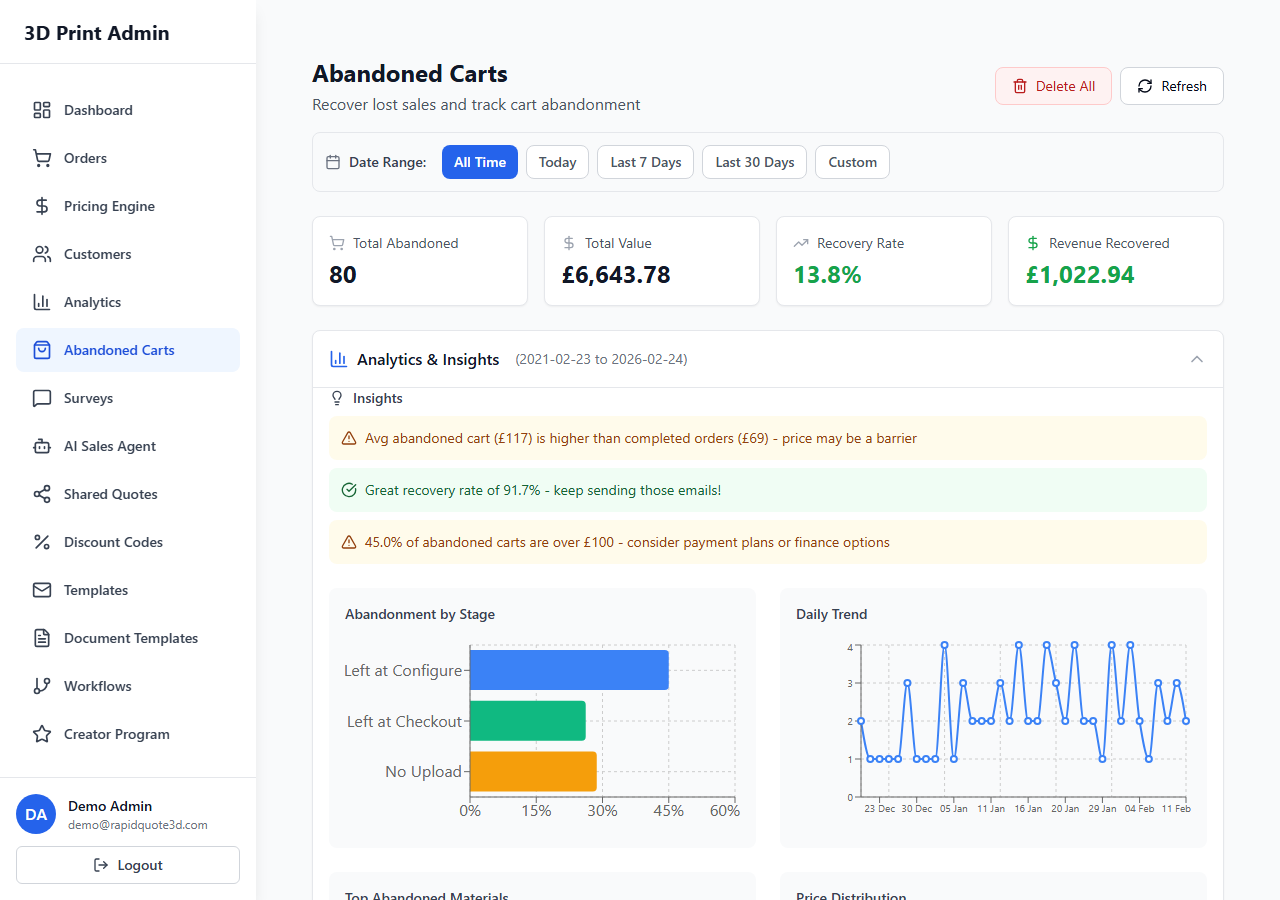
- Total Abandoned Carts – The number of carts abandoned in the selected time period.
- Estimated Lost Revenue – The combined value of all abandoned carts.
- Recovery Rate – The percentage of abandoned carts that were later converted to completed orders.
- Revenue Recovered – The total value of orders recovered from abandoned carts.
Understanding Cart Stages
RapidQuote3D tracks where in the checkout funnel each cart was abandoned. The stages are:
- Upload – The customer uploaded a 3D model but did not proceed to configure it. This may indicate confusion about the next step or issues with the file.
- Configure – The customer selected material and options but did not add the item to their cart. This may suggest pricing concerns or indecision about options.
- Cart – The item was added to the cart but the customer did not proceed to checkout. This is a classic abandonment point, often caused by delivery costs or the need to create an account.
- Checkout – The customer reached the checkout page but did not complete payment. Payment friction or unexpected totals are common causes at this stage.
The dashboard shows the number and percentage of abandonments at each stage, helping you identify where customers drop off most frequently.
Viewing Abandoned Cart Details
Click on any abandoned cart in the list to see full details, including:
- Customer email address (if provided).
- The 3D model(s) they uploaded.
- The material and options they selected.
- The cart value at the time of abandonment.
- The timestamp and stage where they left.
Recovery Email Setup
Automated recovery emails are your most effective tool for bringing customers back. To set them up:
- Go to Marketing > Abandoned Carts > Recovery Settings.
- Toggle Enable Recovery Emails to on.
- Set the Delay – how long after abandonment the email is sent (e.g. 1 hour, 24 hours). A 1-hour delay often works best for the Configure and Cart stages.
- Customise the Email Subject and Body. The editor supports merge tags like
{{customer_name}}and{{cart_value}}to personalise the message. - Optionally enable a follow-up email sent after a longer delay (e.g. 48 hours) if the first email did not result in a conversion.
- Click Save.
Including Discount Codes in Recovery Emails
Offering a small discount can significantly improve recovery rates. In the recovery email settings:
- Toggle Include Discount Code to on.
- Select an existing discount code from the dropdown, or create a new one specifically for cart recovery.
- The code is automatically inserted into the email using the
{{discount_code}}merge tag.
A common strategy is to send the first recovery email without a discount and include a 10% off code in the follow-up email, incentivising customers who did not return on the first nudge.
Tracking Conversion Rates
The Abandoned Carts dashboard tracks recovery performance over time. Key metrics include:
- Emails Sent – Total recovery emails dispatched.
- Emails Opened – Open rate percentage.
- Carts Recovered – Number of abandoned carts that converted to orders after a recovery email.
- Recovery Rate – Percentage of abandoned carts recovered.
- Revenue Recovered – Total value of recovered orders.
Use these metrics to refine your email timing, content, and discount strategy for the best results.
Need help with this topic? Contact our support team