Creating & Managing Discount Codes
Create percentage or fixed-amount discount codes with usage limits, expiry dates, and material restrictions to drive sales and reward loyal customers.
Navigating to Discount Codes
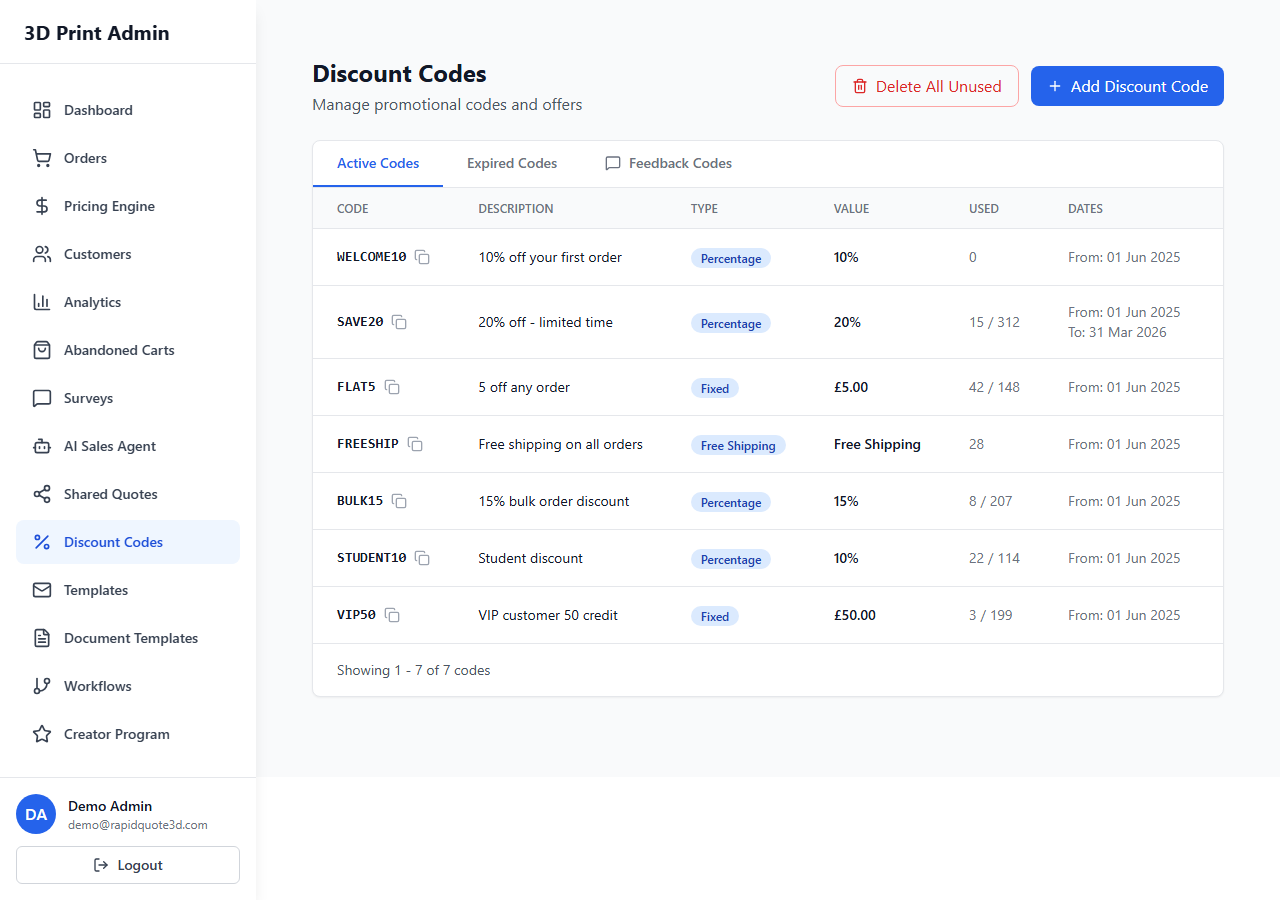
From your admin dashboard, click Marketing in the left-hand sidebar, then select Discount Codes. This page lists all your existing codes with their status, type, usage count, and expiry date.
Creating a New Discount Code
- Click the Create Discount Code button.
- Enter a Code. This is what customers will type at checkout (e.g. “WELCOME10”, “SUMMER2026”). Codes are case-insensitive.
- Choose the Discount Type:
- Percentage Off – Reduces the order subtotal by a percentage (e.g. 10% off).
- Fixed Amount Off – Deducts a specific monetary value from the order subtotal (e.g. £5 off).
- Enter the Discount Value (e.g. 10 for 10% or 5.00 for £5.00).
- Click Save to create the code, or continue configuring the optional settings below before saving.
Setting Usage Limits
You can control how many times a discount code can be used:
- Total Usage Limit – The maximum number of times the code can be redeemed across all customers. Leave blank for unlimited usage.
- Per-Customer Limit – The maximum number of times a single customer can use the code. Setting this to 1 ensures each customer can only use the code once.
Expiry Dates
Set a Start Date and End Date to control when the code is valid. The code will only work during the specified window. If no dates are set, the code is valid indefinitely (until manually deactivated).
Expiry dates are useful for time-limited promotions, seasonal sales, or event-tied campaigns.
Minimum Order Value
Set a Minimum Order Value to ensure the code only applies to orders above a certain amount. For example, setting a £50 minimum on a £5 discount code prevents customers from using it on very small orders where the discount would be disproportionate.
Restricting to Specific Materials or Technologies
For targeted promotions, you can restrict a discount code to specific materials or printing technologies:
- In the code settings, scroll to Restrictions.
- Under Materials, select which materials the code applies to (e.g. only PLA, only Resin).
- Under Technologies, select which printing technologies qualify (e.g. only FDM, only SLA).
If no restrictions are set, the code applies to all materials and technologies.
Activating and Deactivating Codes
Each code has an Active toggle. Deactivating a code immediately prevents it from being used at checkout, even if it has not expired. Reactivate it at any time to make it available again. This gives you instant control over promotions without deleting the code or changing its settings.
Tracking Usage
The Discount Codes list page shows how many times each code has been redeemed. Click on any code to see detailed usage data including:
- Which customers used it.
- The order numbers where it was applied.
- The total discount value given.
- The remaining uses (if a total usage limit was set).
This data helps you measure the effectiveness of your promotions and calculate the return on investment for each campaign.
Best Practices
- Use clear, memorable code names that relate to the promotion (e.g. “FIRST20” for 20% off a first order).
- Set per-customer limits of 1 on welcome codes to prevent abuse.
- Combine minimum order values with percentage discounts to protect your margins.
- Review usage data weekly during active campaigns so you can adjust or extend if needed.
Need help with this topic? Contact our support team