Viewing Activity Logs & System Health
Review your account's audit trail to track team actions, monitor system health indicators, and export activity logs for compliance and troubleshooting.
Overview
Activity logs provide a complete audit trail of every significant action taken within your RapidQuote3D account. They are essential for security monitoring, troubleshooting issues, and maintaining accountability across your team.
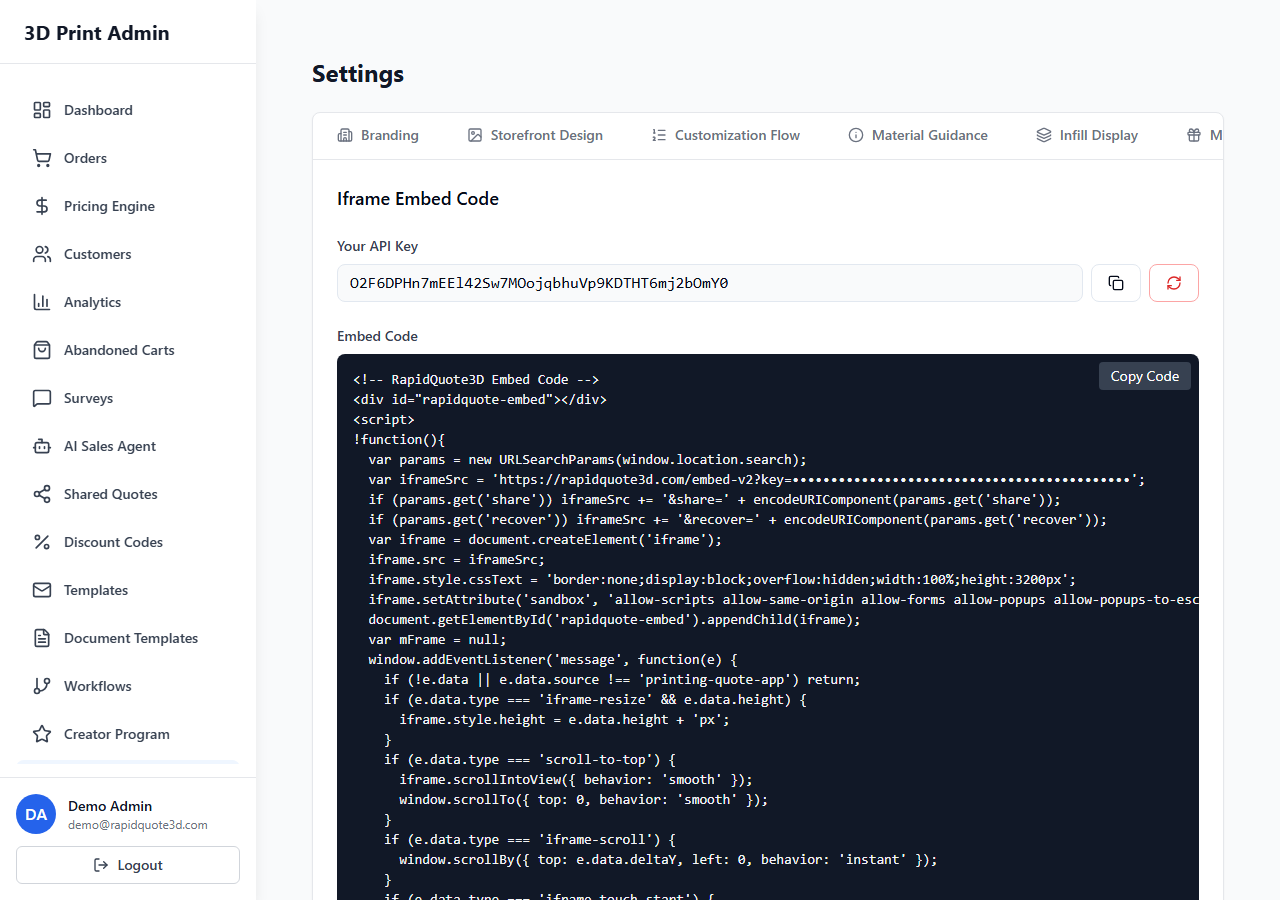
Accessing Activity Logs
- Log in to your RapidQuote3D admin dashboard.
- Click Settings in the left-hand sidebar.
- Select the Activity Log tab (this is available to Admin users only).
The activity log displays a chronological list of actions, with the most recent entries at the top.
Understanding Log Entries
Each log entry contains the following information:
- Timestamp – the exact date and time the action occurred.
- User – the team member who performed the action.
- Action type – a categorised label describing the action.
- Details – additional context about the action, such as which order was modified or which setting was changed.
- IP address – the IP address from which the action was performed.
Common Action Types
| Action Type | Description |
|---|---|
| Login | A team member logged in to the dashboard. Failed login attempts are also recorded. |
| Logout | A team member logged out of the dashboard. |
| Order Updated | An order’s status, details, or notes were changed. The previous and new values are recorded. |
| Order Created | A new order was placed (either by a customer or manually by a team member). |
| Settings Changed | Account settings were modified, including company details, branding, or widget configuration. |
| Pricing Updated | Changes were made to materials, technologies, pricing rules, or rate cards. |
| Team Member Added | A new team member was invited to the account. |
| Team Member Removed | A team member was removed from the account. |
| Integration Changed | An integration was connected, disconnected, or reconfigured. |
| 2FA Enabled/Disabled | Two-factor authentication was enabled or disabled on a user account. |
Filtering Activity Logs
For accounts with high volumes of activity, filtering helps you find the entries you need quickly:
Filter by User
Select a specific team member from the User dropdown to see only their actions. This is useful when investigating a specific person’s activity or auditing a departing team member.
Filter by Action Type
Use the Action Type dropdown to narrow results to a specific category, such as only login events or only pricing updates.
Filter by Date Range
Set a start and end date to focus on a specific time period. This is particularly useful when investigating an incident or reviewing changes made during a specific week or month.
Filters can be combined — for example, you can view all pricing updates made by a specific user within the last 30 days.
System Health Indicators
The system health section provides a quick overview of your platform’s operational status:
- Widget Status – confirms whether your embedded quoting widget is active and reachable.
- Payment Processing – shows whether Stripe is connected and processing payments normally.
- API Status – indicates whether the API is responding correctly.
- Last Backup – the timestamp of the most recent data backup.
Each indicator displays a green (healthy), amber (warning), or red (error) status. If any indicator shows a warning or error, check the corresponding integration or contact support.
Exporting Activity Logs
- Apply any desired filters (user, action type, date range).
- Click the Export button at the top of the activity log.
- Select your preferred format (CSV).
- The file downloads containing all filtered log entries.
Exported logs are useful for compliance audits, sharing with security consultants, or maintaining off-platform records of account activity.
Best Practices
- Review activity logs weekly, paying particular attention to login events from unfamiliar IP addresses.
- Investigate any unexpected settings or pricing changes immediately.
- Export and archive logs monthly for long-term record-keeping.
- Use activity logs alongside 2FA enforcement to maintain a robust security posture.
Need help with this topic? Contact our support team