Managing Integrations
Connect RapidQuote3D with third-party services like Stripe, manage API keys and webhooks, and test your integrations to ensure seamless data flow.
Overview
RapidQuote3D integrates with external services to handle payments, automate workflows, and extend your platform’s capabilities. The Integrations page is your central hub for connecting, configuring, and monitoring all third-party connections.
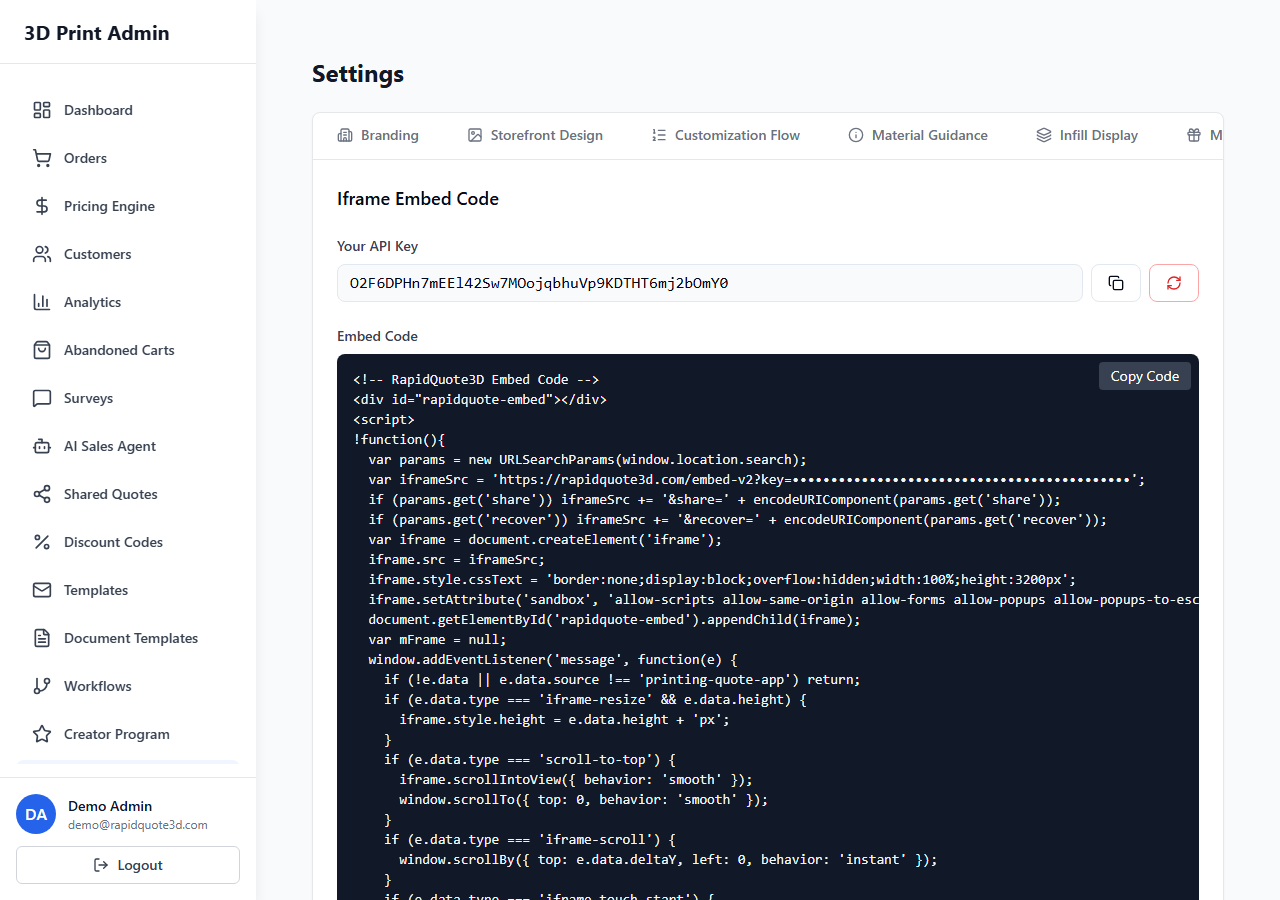
Accessing the Integrations Page
- Log in to your RapidQuote3D admin dashboard.
- Click Settings in the left-hand sidebar.
- Select the Integrations tab.
You will see a list of available integrations, each showing its connection status (Connected, Not Connected, or Error).
Available Integrations
Stripe (Primary Payment Integration)
Stripe is the primary payment processor for RapidQuote3D. It handles all customer payments, invoicing, and refunds. To connect Stripe:
- Click Connect next to the Stripe integration card.
- You will be redirected to Stripe’s OAuth authorisation page.
- Log in to your Stripe account (or create one if needed).
- Authorise RapidQuote3D to access your Stripe account.
- You will be redirected back to RapidQuote3D with the connection confirmed.
Once connected, customer payments made through your quoting widget are processed automatically via Stripe, and order records are updated with payment status in real time.
Other Integrations
Depending on your plan, additional integrations may be available for email marketing, accounting software, or shipping providers. Each follows a similar connection flow via OAuth or API key entry.
API Key Management
RapidQuote3D provides API keys that allow you to programmatically interact with your account. To manage your API keys:
- Navigate to Settings > Integrations.
- Scroll to the API Keys section.
- Your current API key is displayed (partially masked for security). Click Reveal to view the full key.
Regenerating an API Key
If you suspect your API key has been compromised, or you simply want to rotate it as a security best practice:
- Click Regenerate Key.
- Confirm the action when prompted. Warning: this immediately invalidates the previous key.
- Copy the new key and update it in any external applications or scripts that use the API.
Keep your API keys confidential. Never share them in public repositories, emails, or client-facing code.
OAuth Connection Flow
For integrations that use OAuth (such as Stripe), the connection flow works as follows:
- Click Connect on the integration card.
- You are redirected to the third-party service’s authorisation page.
- Log in and grant the requested permissions.
- You are redirected back to RapidQuote3D with the integration active.
OAuth connections can be revoked either from RapidQuote3D or from the third-party service’s settings.
Webhook Configuration
Webhooks allow RapidQuote3D to send real-time notifications to your own systems when specific events occur (e.g., a new order is placed, a payment is received).
- In the Integrations page, scroll to the Webhooks section.
- Click Add Webhook.
- Enter the URL of the endpoint that should receive webhook events.
- Select the events you want to subscribe to (e.g.,
order.created,payment.completed,order.status_changed). - Click Save.
Each webhook delivery includes a signature header so your receiving system can verify that the request genuinely came from RapidQuote3D.
Testing Integrations
After connecting an integration or adding a webhook:
- Stripe: use Stripe’s test mode to process a dummy payment through your widget and verify it appears in your RapidQuote3D orders.
- Webhooks: click the Send Test Event button next to your webhook URL. Check your endpoint to confirm the test payload was received.
- API: use a tool like Postman or cURL to make a test API request using your key and verify you receive a valid response.
Disconnecting an Integration
- Find the integration on the Integrations page.
- Click Disconnect or the settings icon.
- Confirm the disconnection when prompted.
Disconnecting an integration stops all data flow between RapidQuote3D and the third-party service. For Stripe, this means payments will no longer be processed until the integration is reconnected.
Troubleshooting
- If an integration shows an Error status, try disconnecting and reconnecting it.
- Check that your API keys are correct and have not expired or been regenerated elsewhere.
- For webhook issues, verify your endpoint URL is publicly accessible and returns a
200status code. - Contact RapidQuote3D support if issues persist after troubleshooting.
Need help with this topic? Contact our support team