Setting Up Two-Factor Authentication
Strengthen your account security by enabling two-factor authentication (2FA) using an authenticator app, and learn how to manage backup codes and enforce 2FA across your team.
Overview
Two-factor authentication (2FA) adds an essential layer of security to your RapidQuote3D account. Even if your password is compromised, 2FA prevents unauthorised access by requiring a second verification step. We strongly recommend enabling 2FA for all team members, especially those with Admin or Manager roles.
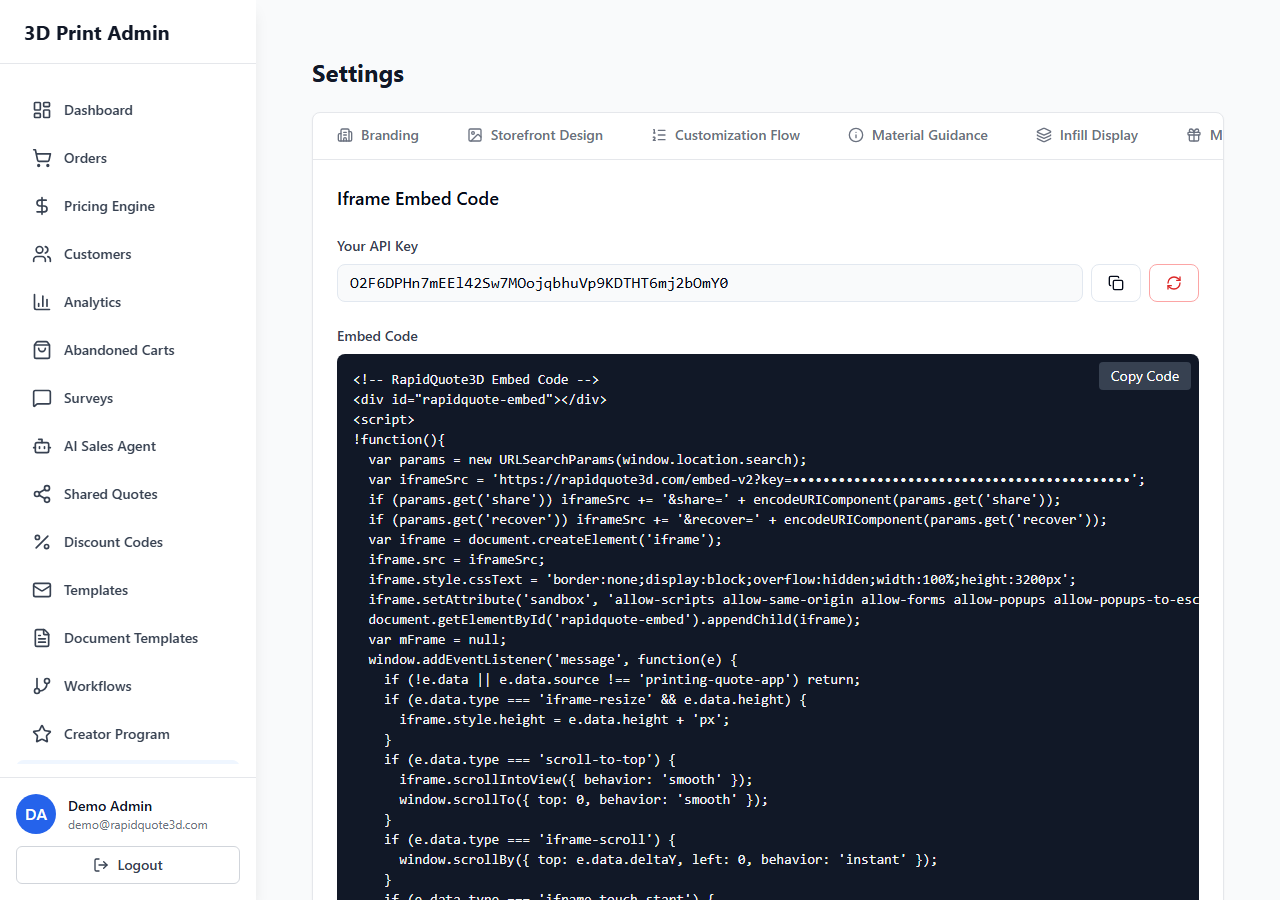
Navigating to Security Settings
- Log in to your RapidQuote3D admin dashboard.
- Click Settings in the left-hand sidebar.
- Select the Security tab.
Enabling 2FA for Your Account
- In the Security settings, locate the Two-Factor Authentication section.
- Click the Enable 2FA button.
- You will be prompted to choose your preferred method. The recommended method is a TOTP authenticator app.
Setting Up with an Authenticator App (TOTP)
Time-based One-Time Password (TOTP) apps generate a new 6-digit code every 30 seconds. Popular options include:
- Google Authenticator – available for iOS and Android.
- Authy – available for iOS, Android, and desktop, with cloud backup support.
- Microsoft Authenticator – available for iOS and Android.
Step-by-Step Setup
- After clicking Enable 2FA, a QR code is displayed on screen.
- Open your authenticator app on your mobile device.
- Tap the + or Add Account button in the app.
- Select Scan QR Code and point your camera at the QR code on screen.
- The app will add a new entry labelled “RapidQuote3D” and begin generating 6-digit codes.
- Enter the current 6-digit code from your app into the verification field on the RapidQuote3D page.
- Click Verify & Enable.
If you cannot scan the QR code, click Enter code manually to reveal a text-based secret key that you can type into your authenticator app.
Backup and Recovery Codes
After successfully enabling 2FA, you will be shown a set of backup recovery codes. These are critically important:
- Each code can be used once to log in if you lose access to your authenticator app.
- Download or copy the codes and store them in a secure location (e.g., a password manager or a printed sheet kept in a safe).
- Do not store recovery codes in an unencrypted file on your computer.
- If you exhaust your recovery codes, contact support or ask another Admin to reset your 2FA.
SMS Verification as Fallback
As an additional fallback, you can configure SMS verification:
- In the 2FA settings, click Add SMS Fallback.
- Enter your mobile phone number.
- A verification code will be sent via SMS. Enter it to confirm.
- SMS is now available as a backup method if your authenticator app is unavailable.
Note: SMS is less secure than a TOTP app due to SIM-swapping risks. We recommend using it only as a secondary fallback, not your primary 2FA method.
Enforcing 2FA for All Team Members
Admin users can require 2FA for every team member on the account:
- In Settings > Security, locate the Enforce 2FA toggle.
- Switch it to On.
- Click Save.
Once enforced, any team member who has not yet set up 2FA will be required to do so upon their next login. They will not be able to access the dashboard until 2FA is configured.
Managing Your 2FA Settings
- Disable 2FA – click Disable 2FA in the security settings. You will need to enter a current code from your authenticator app to confirm.
- Regenerate recovery codes – if you have used some of your codes, you can generate a fresh set. This invalidates all previous codes.
- Change authenticator app – disable 2FA, then re-enable it to scan a new QR code with a different app.
Best Practices
- Enable 2FA on all accounts, especially Admin accounts.
- Use a TOTP authenticator app as your primary method rather than SMS.
- Store recovery codes securely in a password manager.
- Enforce 2FA across your entire team for maximum security.
Need help with this topic? Contact our support team