Understanding Workflow Triggers
Explore all available workflow triggers, from cart abandonment to payment events, and learn how trigger conditions and filters let you target specific scenarios.
Understanding Workflow Triggers
Triggers are the starting point of every workflow. They listen for specific events in your store and fire the workflow's actions when conditions are met. Choosing the right trigger — and configuring it properly — ensures your automations run at exactly the right moment.
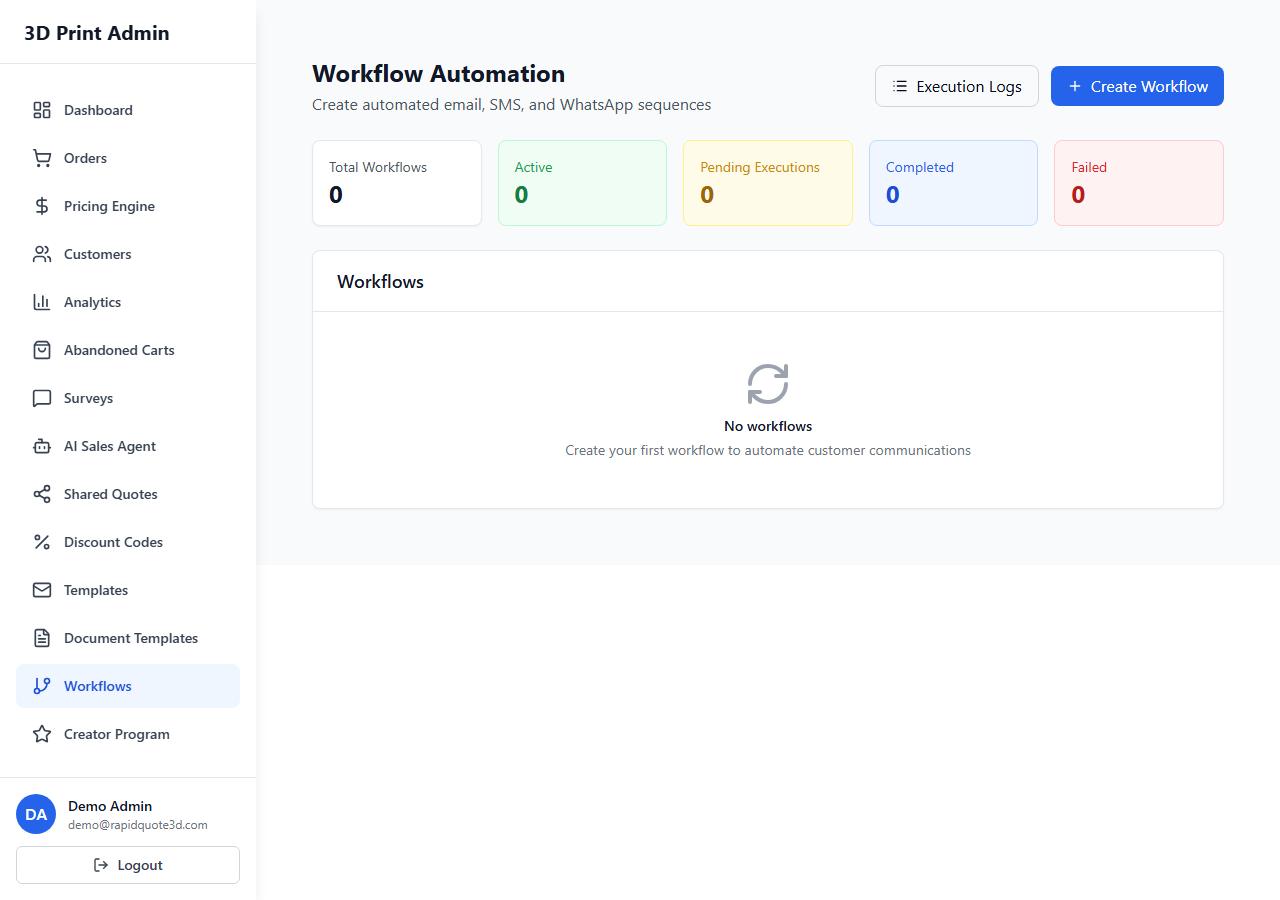
Available Triggers
| Trigger | Fires When | Common Use Cases |
|---|---|---|
| Cart Abandoned | A customer adds items to their cart but does not complete checkout within a specified delay | Recovery emails, discount offers |
| Order Created | A new order is placed through the widget or manually by an admin | Confirmation emails, internal notifications |
| Order Status Changed | An order moves to a specified status | Production updates, shipping notifications |
| Order Completed | An order is marked as completed/delivered | Review requests, follow-up surveys |
| Order Shipped | An order is marked as shipped and tracking information is added | Shipping confirmation with tracking link |
| Payment Received | A successful payment is processed for an order | Payment confirmation, receipt emails |
| Payment Failed | A payment attempt fails or is declined | Retry prompts, alternative payment method suggestions |
| Customer Created | A new customer record is created in the system | Welcome emails, onboarding sequences |
Trigger Configuration Options
Each trigger type has specific configuration options:
Cart Abandoned
- Delay — Set how long to wait after the cart is abandoned before firing. Options typically range from 30 minutes to 24 hours.
- Minimum cart value — Only trigger for carts above a certain value to focus recovery efforts on higher-value prospects.
Order Status Changed
- From status — Optionally specify the status the order is moving from.
- To status — Specify the status the order is moving to. This is required. For example, set "To: In Production" to notify customers when printing begins.
Payment Failed
- Retry count — Optionally filter by how many failed attempts have occurred. This lets you send different messages for a first failure versus repeated failures.
Trigger Conditions and Filters
Beyond the trigger-specific options above, you can add general conditions to fine-tune when a workflow fires:
- Order value filter — Only trigger when the order total is above or below a specified amount.
- Customer tag filter — Only trigger for customers with (or without) a specific tag.
- Order tag filter — Only trigger for orders with a specific tag.
- Delivery method filter — Only trigger for specific shipping methods (e.g. express delivery).
Conditions are evaluated using AND logic — all conditions must be met for the trigger to fire.
How Triggers Are Evaluated
When an event occurs in the system, the workflow engine follows this process:
- The event is detected (e.g. a new order is placed).
- The engine checks all active workflows for matching triggers.
- For each matching workflow, trigger conditions and filters are evaluated.
- If all conditions pass, the workflow's actions are queued for execution.
- Multiple workflows can fire from the same event — they execute in priority order.
Best Practices
- Be specific — Use conditions and filters to avoid sending irrelevant communications.
- Avoid overlap — If two workflows have similar triggers, check that customers will not receive duplicate messages.
- Test thoroughly — Create a test order and verify that the correct workflows fire with the expected actions.
- Start simple — Begin with one or two workflows and add more as you become comfortable with the system.
Need help with this topic? Contact our support team