Configuring Workflow Actions
Learn about all available workflow actions, from sending emails and SMS to creating discount codes and tagging customers, with configuration options for each.
Configuring Workflow Actions
Actions are the tasks that execute when a workflow's trigger fires. You can chain multiple actions together to create sophisticated automation sequences. This guide covers every available action type and how to configure each one.
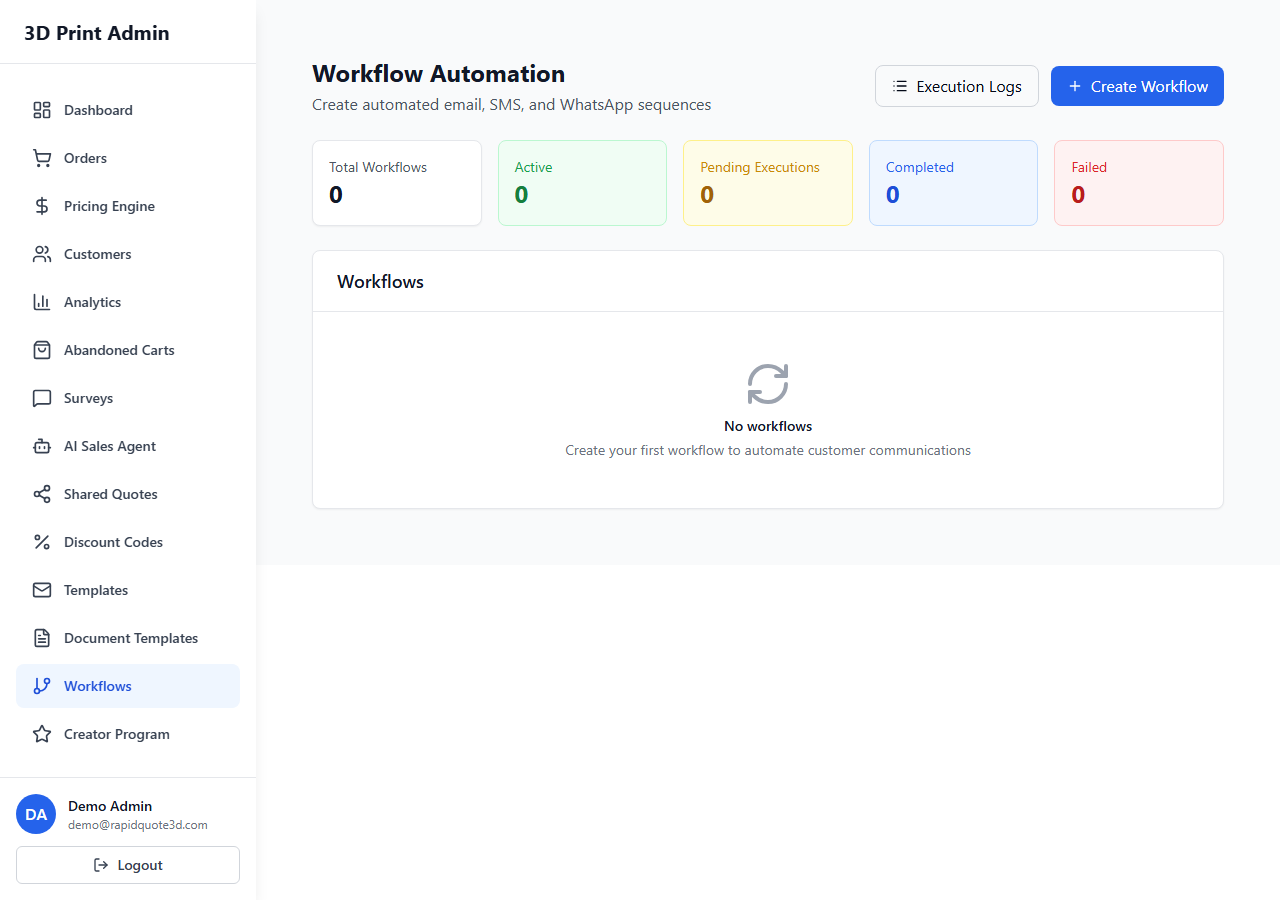
Available Actions
| Action | Description |
|---|---|
| Send Email | Sends an email to the customer using a selected template |
| Send SMS | Sends an SMS to the customer using a selected template |
| Create Discount Code | Generates a unique, auto-created discount code |
| Send Survey | Sends a customer satisfaction survey link |
| Add Tag to Customer | Applies a tag to the customer's profile |
| Add Tag to Order | Applies a tag to the order record |
| Assign to Team Member | Assigns the order to a specific team member for follow-up |
Action Configuration Details
Send Email
- Select Send Email as the action type.
- Choose an email template from the dropdown. Only saved templates appear here — create templates under Communication > Email Templates first.
- The email is sent to the customer associated with the triggering event (e.g. the customer who placed the order).
Send SMS
- Select Send SMS as the action type.
- Choose an SMS template from the dropdown.
- The SMS is sent to the customer's phone number on file. If no phone number exists, the action is skipped.
Create Discount Code
- Select Create Discount Code as the action type.
- Configure the discount parameters:
- Discount type — Percentage or fixed amount
- Discount value — e.g. 10% or £5.00
- Expiry period — How long the code remains valid (e.g. 7 days, 30 days)
- Usage limit — Single use or multiple uses
- The generated code is stored in the
{{discount_code}}variable and can be included in subsequent email or SMS actions within the same workflow.
Send Survey
- Select Send Survey as the action type.
- The system sends a survey link to the customer via email.
- Survey responses are collected and viewable under Communication > Survey Responses.
Add Tag to Customer
- Select Add Tag to Customer as the action type.
- Enter or select the tag name (e.g. "VIP", "Repeat Buyer", "At Risk").
- The tag is added to the customer's profile, where it can be used for filtering and segmentation.
Add Tag to Order
- Select Add Tag to Order as the action type.
- Enter or select the tag name (e.g. "Priority", "Large Order", "Requires Review").
- The tag is applied to the order and is visible on the order detail page.
Assign to Team Member
- Select Assign to Team Member as the action type.
- Choose a team member from the dropdown list.
- The order is assigned to that person and appears in their personal task queue.
Action Ordering and Sequencing
Actions within a workflow execute in the order they are listed, from top to bottom:
- Drag and drop actions to reorder them.
- Actions that generate data (like Create Discount Code) should be placed before actions that use that data (like Send Email containing
{{discount_code}}). - If one action fails, subsequent actions still execute unless you configure the workflow to stop on failure.
Adding Delays Between Actions
You can insert a delay between actions to space out communications:
- Click the Add Delay button between two actions.
- Set the delay duration — minutes, hours, or days.
- The workflow pauses at the delay step and resumes automatically when the time elapses.
Delays are useful for sequences like abandoned cart recovery, where you might send an initial reminder after one hour and a follow-up discount after 24 hours.
Tips for Effective Action Configuration
- Create templates first — Email and SMS actions require pre-built templates. Set these up before building your workflow.
- Order matters — Place data-generating actions (discount codes) before data-consuming actions (emails).
- Use delays wisely — Do not overwhelm customers with rapid-fire messages. Space communications out appropriately.
- Tag for segmentation — Use tagging actions to build customer segments that you can target with future campaigns.
Need help with this topic? Contact our support team