Monitoring Workflow Executions
Track your workflow executions in real time, view detailed logs, troubleshoot failures, and retry failed actions from the execution history page.
Monitoring Workflow Executions
Once your workflows are live, you need to monitor them to ensure they are running correctly. The execution history page provides a complete audit trail of every workflow run, with detailed logs and the ability to retry failed executions.
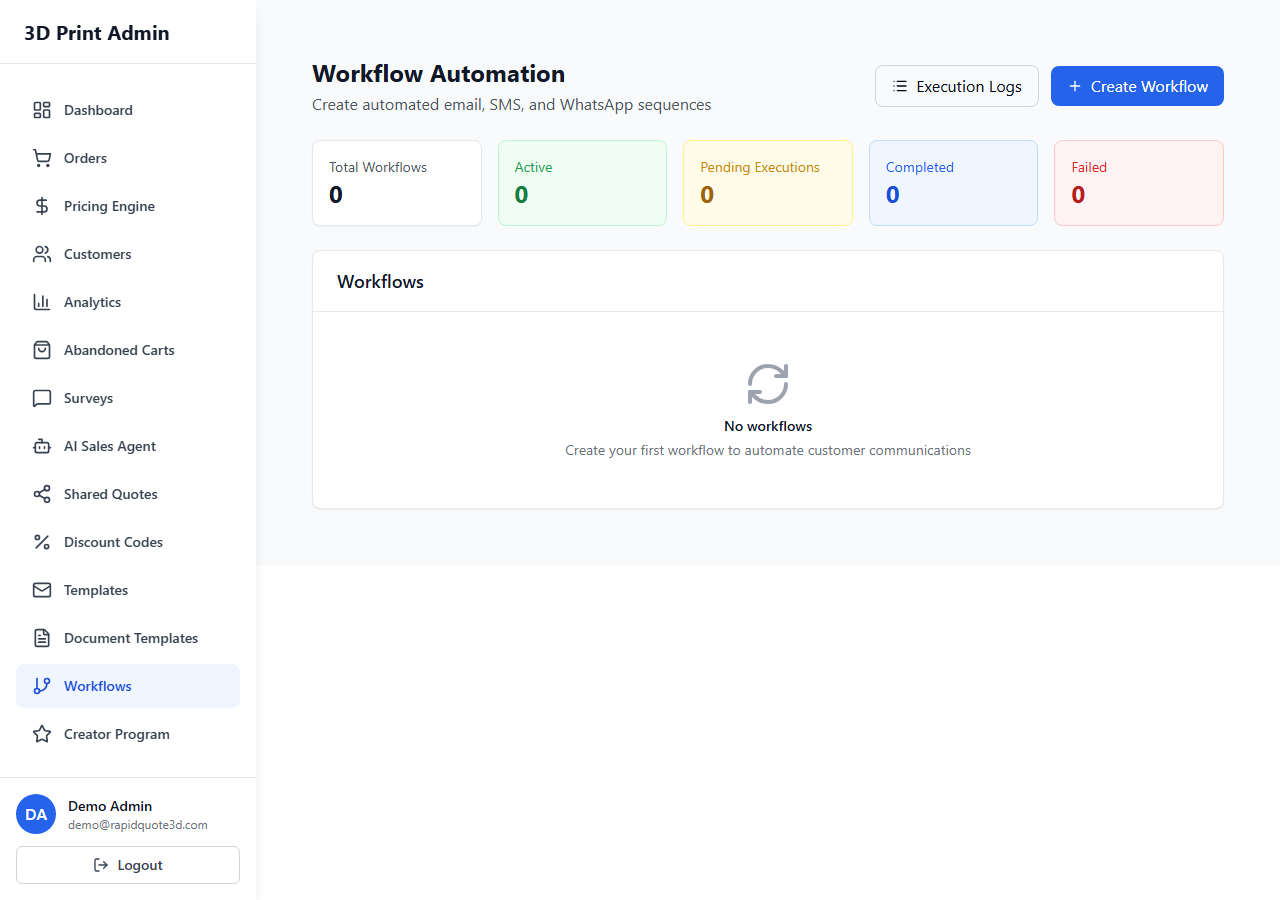
Accessing Execution History
- Navigate to Automation > Workflows in the admin sidebar.
- Click on a specific workflow to view its detail page.
- Select the Execution History tab to see all past runs.
- Alternatively, go to Automation > Execution Log to view executions across all workflows in a single unified view.
Execution Statuses
Each execution is assigned one of the following statuses:
| Status | Meaning |
|---|---|
| Pending | The workflow has been triggered and is queued, waiting to start executing actions. |
| Running | The workflow is currently executing its actions. If delays are configured, it may remain in this state for the duration of the delay. |
| Completed | All actions in the workflow executed successfully. |
| Failed | One or more actions encountered an error. Check the execution details for the specific failure reason. |
| Skipped | The workflow's trigger conditions were not met, so no actions were executed. This is recorded for transparency. |
Viewing Execution Details
Click on any execution row to expand its detailed view. The detail panel shows:
- Trigger information — Which event fired the workflow, and associated data (order number, customer name, etc.).
- Action timeline — A chronological list of each action that ran, with:
- Action type and configuration (e.g. "Send Email — Order Confirmation Template")
- Start and end timestamps
- Status indicator (success or failure)
- Error message (if the action failed)
- Duration — Total time from trigger to final action completion.
Retrying Failed Executions
When an execution fails, you can retry it:
- Open the failed execution's detail view.
- Click the Retry button. This re-runs the workflow from the point of failure.
- Only the failed action and subsequent actions are re-executed — previously successful actions are not repeated.
- The retried execution appears as a new entry in the history with a "Retried" label linking back to the original attempt.
Note: Fix the underlying issue before retrying. Common causes of failure are described below.
Debugging Common Issues
| Issue | Likely Cause | Solution |
|---|---|---|
| Email action failed | Invalid or missing customer email address | Check the customer record and ensure a valid email is saved |
| SMS action failed | Missing phone number or invalid format | Verify the customer's phone number is in the correct international format |
| Discount code action failed | Discount configuration error (e.g. negative value) | Review the discount parameters in the action configuration |
| Workflow never fires | Workflow is disabled or conditions are too restrictive | Check the active toggle and review trigger conditions |
| Duplicate messages sent | Multiple workflows with overlapping triggers | Review all active workflows and consolidate or add distinguishing conditions |
| Actions execute out of order | Missing delay or incorrect action ordering | Reorder actions and add delays where needed |
Execution Logs
For deeper investigation, each execution includes a raw log:
- The log records every step the workflow engine processed.
- It includes variable values at the time of execution, which is useful for verifying that template variables resolved correctly.
- Logs are retained for 90 days before being automatically archived.
Monitoring Best Practices
- Check executions regularly — Especially after creating or modifying a workflow, monitor the first few executions closely.
- Set up failure alerts — Configure an internal notification so you are alerted when a workflow fails.
- Review skipped executions — Frequent skips may indicate that your trigger conditions are too restrictive.
- Use the unified log — The Automation > Execution Log page is the fastest way to spot issues across all workflows at once.
Need help with this topic? Contact our support team