Customising Document Templates
Learn how to customise invoice, quote, and packing slip PDF templates with your branding, company details, and custom CSS.
Customising Document Templates
RapidQuote3D generates PDF documents for invoices, quotes, and packing slips. You can fully customise these documents to match your brand identity, ensuring a professional appearance across all customer-facing paperwork.
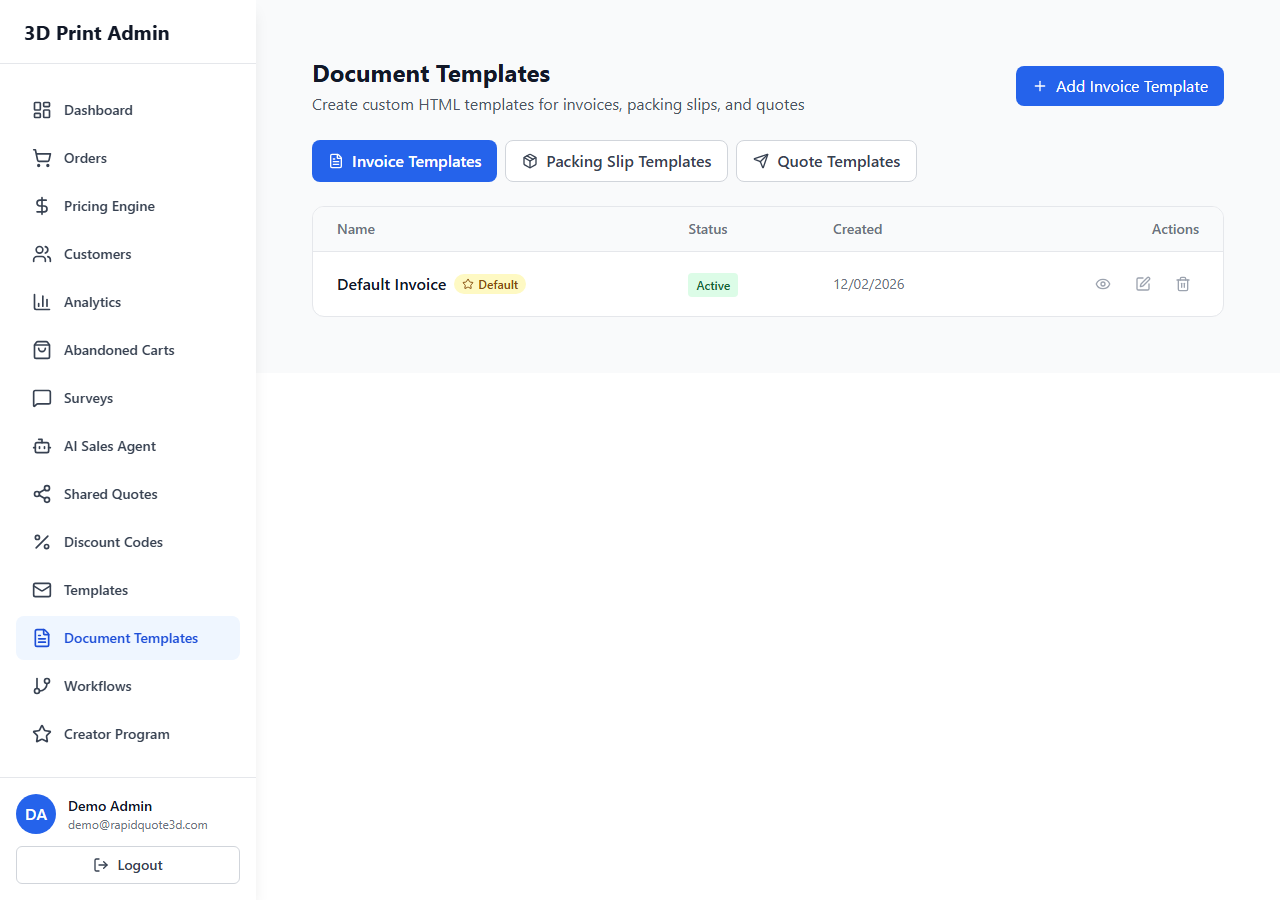
Accessing Document Templates
- Navigate to Settings in the admin sidebar.
- Click Document Templates.
- You will see tabs for each document type: Invoices, Quotes, and Packing Slips.
Available Document Types
| Document | Purpose | When Generated |
|---|---|---|
| Invoice | Billing document sent to customers after payment or for payment requests | Automatically on order creation or manually from the order page |
| Quote | Itemised cost estimate for a prospective order | Manually from the quotes section or automatically via the widget |
| Packing Slip | Included with shipped orders listing contents | Generated when marking an order as shipped |
Customising PDF Appearance
Logo
- In the document template editor, click the Logo section.
- Upload your company logo (recommended size: 300 x 100 pixels, PNG or SVG format).
- Adjust the logo position — left, centre, or right alignment.
- The logo appears at the top of every generated PDF.
Brand Colours
- Click Brand Colours to open the colour configuration panel.
- Set your Primary Colour — used for headings, borders, and accent elements.
- Set your Secondary Colour — used for subtle backgrounds and secondary text.
- Use the hex colour picker or enter a hex code directly (e.g.
#6D28D9).
Company Details
The following details appear on your documents and are pulled from your business settings:
- Company name
- Registered address
- Phone number and email
- VAT / Tax registration number (if applicable)
- Company registration number
To update these, go to Settings > Business Details and make your changes there. Document templates will reflect the updated information automatically.
Template Sections
Each document template is divided into configurable sections:
- Header — Logo, company name, document title (e.g. "INVOICE"), and document number
- Customer Details — Billing name, address, email, and phone
- Line Items Table — Item descriptions, quantities, unit prices, and line totals
- Totals — Subtotal, discounts, tax breakdown, and grand total
- Footer — Custom footer text such as payment terms, thank you message, or legal notices
- Notes — An optional free-text area for per-document notes
You can toggle the visibility of each section and reorder certain elements within the template editor.
Custom Footer Text
The footer section supports custom text that appears at the bottom of every document. Common uses include:
- Payment terms (e.g. "Payment due within 30 days")
- Bank details for bank transfer payments
- Return policy information
- A thank you message
Custom CSS Support
For advanced customisation, you can inject custom CSS to override the default document styling:
- Scroll to the Custom CSS section at the bottom of the template editor.
- Enter valid CSS rules in the code editor. For example:
.document-header {
  border-bottom: 3px solid #6D28D9;
}
.line-items-table th {
  background-colour: #F3F4F6;
  font-weight: 700;
}
.document-footer {
  font-size: 10px;
  colour: #6B7280;
}
Note: Custom CSS applies to the PDF rendering engine. Test thoroughly using the preview function, as not all CSS properties are supported in PDF generation.
Preview and Download Test PDFs
- After making changes, click Preview to see a rendered version of the document with sample data.
- Click Download Test PDF to generate and download an actual PDF file you can review.
- Check that your logo, colours, layout, and footer text all appear correctly.
- Once satisfied, click Save to apply the template to all future documents.
Need help with this topic? Contact our support team