Creating SMS Templates
Set up SMS templates with concise messaging, template variables, and smart formatting to keep customers informed via text message.
Creating SMS Templates
SMS templates allow you to send short, timely text messages to customers at key moments in the order process. Because text messages have strict character limits, crafting effective SMS templates requires a different approach to email.
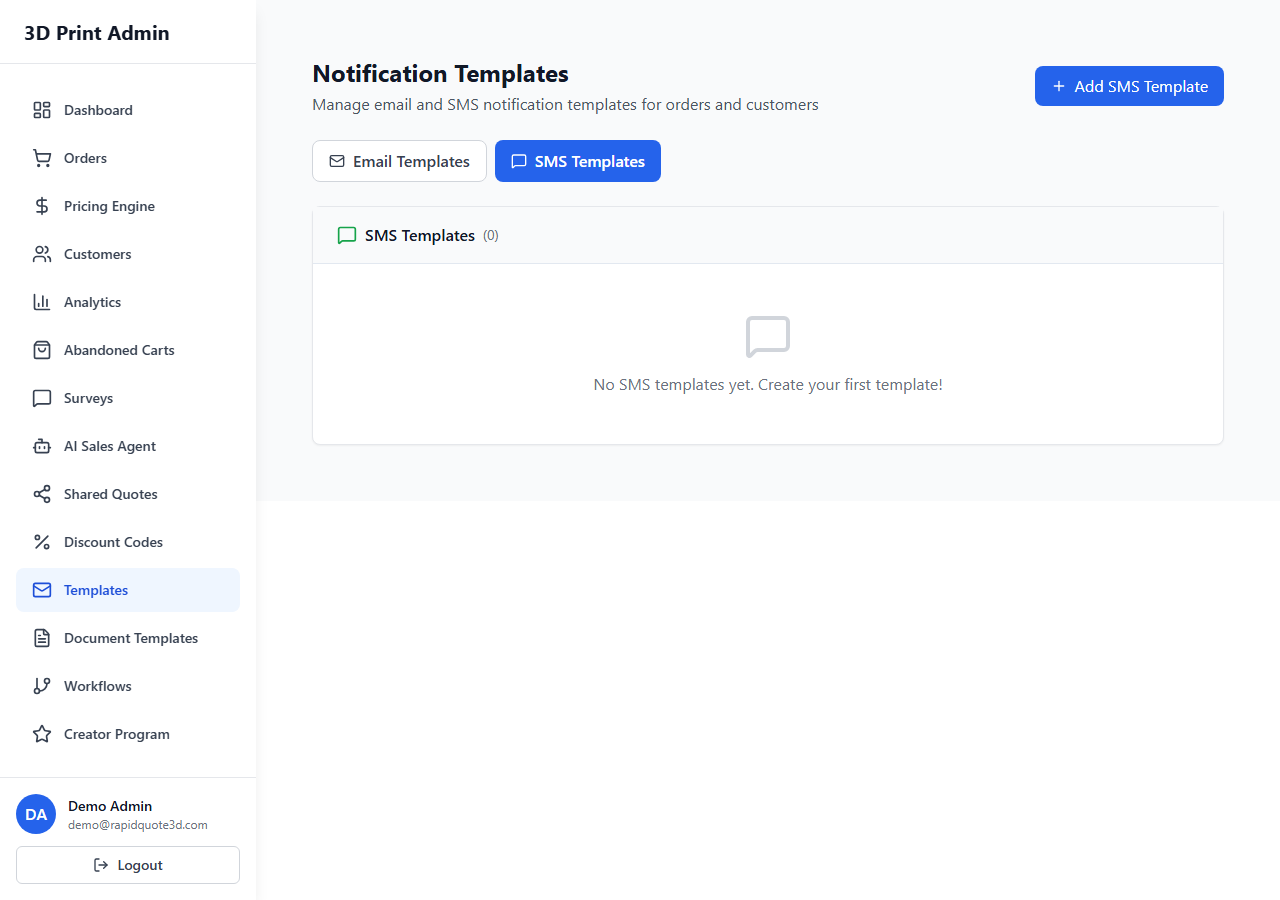
Navigating to SMS Templates
- From your admin dashboard, click Communication in the sidebar.
- Select SMS Templates from the submenu.
- You will see a list of existing SMS templates along with their assigned triggers.
Creating a New SMS Template
- Click Create Template in the top-right corner.
- Enter a Template Name for internal reference (e.g. "Order Shipped SMS").
- Compose your message in the text area provided.
- Click Save when you are satisfied with the content.
Character Limits and SMS Segments
Understanding SMS segments is important for cost control:
| Encoding | Characters per Segment | Notes |
|---|---|---|
| GSM-7 (standard) | 160 characters | Covers basic Latin letters, numbers, and common symbols |
| Unicode (UCS-2) | 70 characters | Used when emojis or special characters are included |
| Multi-segment GSM-7 | 153 per segment | Messages over 160 characters are split; each segment uses 153 usable characters |
The editor displays a live character count and segment estimate as you type. Each segment is billed separately, so keeping messages within a single segment saves costs.
Inserting Template Variables
You can insert dynamic variables into SMS templates just as you would with email. Click the Insert Variable button or type {{ to open the variable picker. Popular SMS variables include:
{{customer_name}}— Personalises the greeting{{order_number}}— References the specific order{{tracking_url}}— Provides a clickable tracking link{{business_name}}— Identifies your company
Important: Remember that variable values contribute to the final character count. A customer name of 25 characters will increase your message length accordingly.
SMS Formatting Best Practices
- Keep it concise — Aim for under 160 characters to stay within one segment.
- Lead with the key information — Put the most important detail (order shipped, payment received) at the start.
- Include a short link — Use the
{{tracking_url}}variable or your storefront URL so customers can take action. - Avoid emojis — They trigger Unicode encoding and halve your character allowance.
- Identify your business — Always include
{{business_name}}so the recipient knows who sent the message. - Include opt-out language — Depending on your region, you may need to add "Reply STOP to unsubscribe".
Preview Functionality
Click Preview to see your SMS rendered with sample data. The preview shows the final character count and segment breakdown so you can optimise before saving.
Assigning SMS Templates to Workflow Actions
- Navigate to Automation > Workflows.
- Open or create a workflow.
- Add a Send SMS action and select your template from the dropdown.
- The SMS will be sent automatically whenever the workflow's trigger fires.
You can also assign templates directly from the SMS template editor under the Trigger Assignment section.
Need help with this topic? Contact our support team